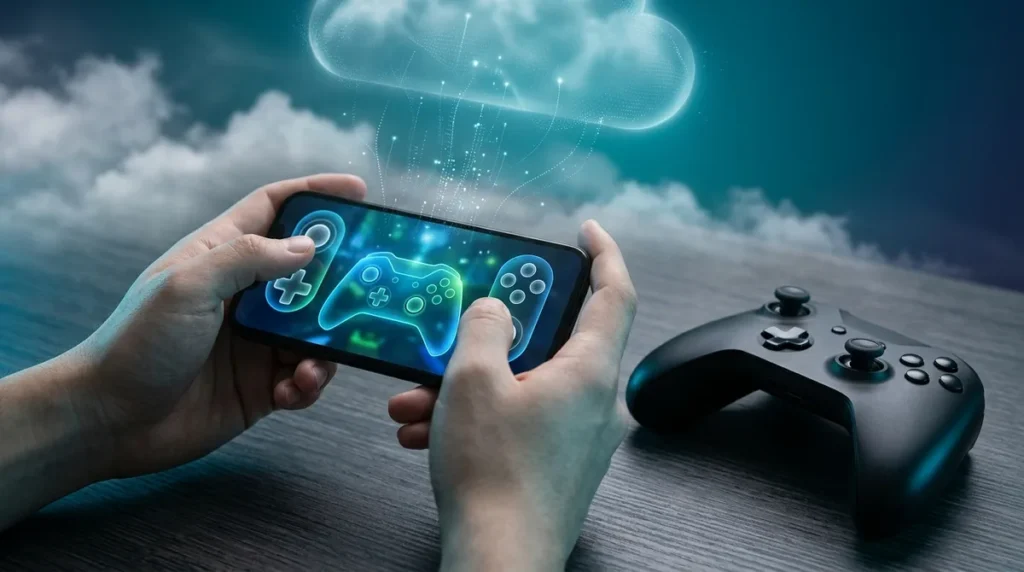
Xbox Cloud Phone Controls let you use an Android or iOS phone as the controller for streamed games on supported smart TVs, but only when no physical gamepad is connected. Xbox announced the preview on November 4, 2026, and warned that availability and supported games or devices could be limited during testing. Consider it a fallback for the moment you realize your controller is in another room.
The same announcement covered a second test: Wi-Fi connection for the $49.99 Xbox Nano Controller, which Xbox says may reduce input latency. Phone controls are rolling out in Cloud Gaming-supported countries. The Nano test is limited to the U.S.
TL;DR: Xbox Cloud Phone Controls let you use an Android or iOS phone as a touch controller for streamed games on supported smart TVs, but only when no physical gamepad is connected, and the preview is limited to countries where Cloud Gaming is available. Enable Preview Features under Settings > Account on your TV, launch a cloud game with no controller paired, and select the phone option, which opens controls in your phone’s browser with custom layouts for only some titles. The separate Xbox Nano Controller Wi-Fi test is U.S.-only, requires the Xbox beta app or Xbox Insider setup, and carries an unmeasured latency claim, so treat it as a promise, not a proven upgrade.
Xbox Turns Your Phone Into a Couch Controller
Xbox’s November 4, 2026 announcement covered two separate tests, and they work differently. For phone controls, you switch on Preview Features under Settings > Account in the smart-TV experience. The phone option appears when a game launches with no controller connected, and the controls open in your phone’s browser, with tailored layouts for some games. Nano cloud connect is a different beast. It needs the Xbox beta app on Android or Xbox Accessories on PC, Wi-Fi configuration, and the same Xbox account on the controller and the cloud game. At launch, it only worked with supported smart TVs and the web, so don’t expect it to cover every cloud title yet.
Turning On the Phone Option, Step by Step
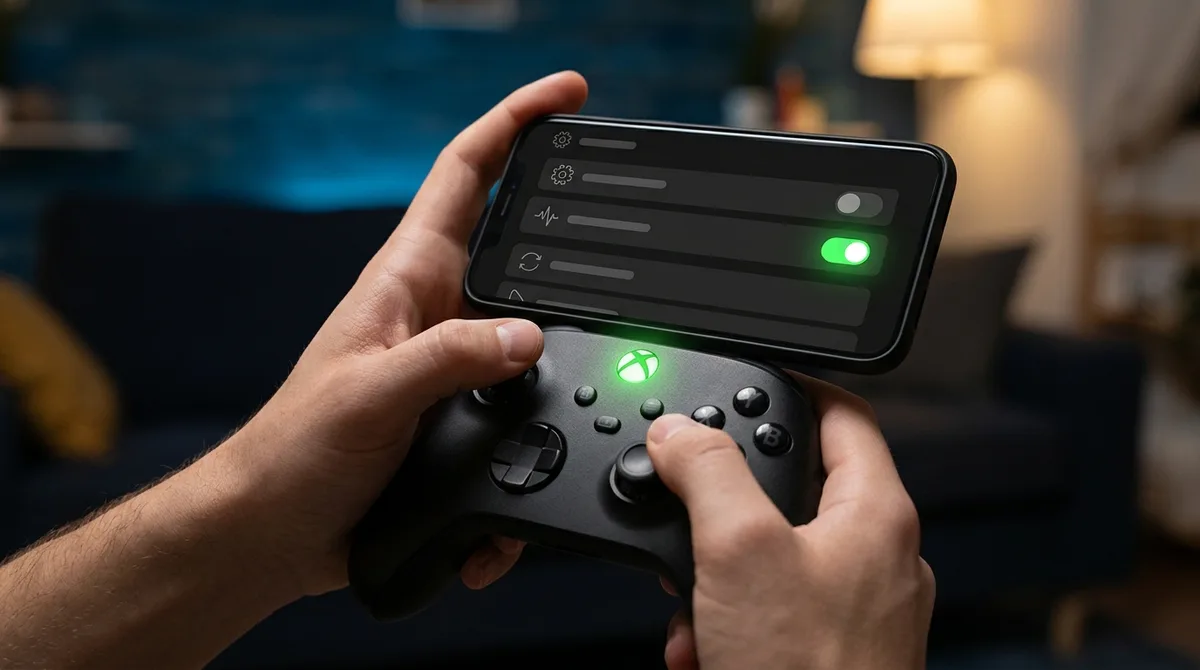
Most of the setup happens on the TV, and the phone option only shows up in one specific situation. You need to launch a game with no physical controller paired.
- On your supported smart TV, open the Xbox experience and go to Settings, then Account.
- Turn on Preview Features.
- Launch a cloud game while no physical controller is connected to the TV.
- When the phone option appears on screen, select it.
- Open the controls in your phone’s browser and start playing.
No separate controller app is required, so there’s nothing extra to install on the phone. Layouts are tailored for some games, but not all of them. For a title without a custom layout, expect a more generic set of touch controls, and check how the game behaves before you commit to a long session.
Which TVs and Phones Qualify Right Now
Phone controls work with Android and iOS phones. Minimum operating system versions haven’t been named, so don’t assume an older phone will work just because it runs one of those systems. Check your phone’s software version in its settings before you plan a session around it.
There’s no brand or model list for supported smart TVs yet. The only reliable test is to open the Xbox experience on your TV and look for Preview Features under Account. If that option isn’t there, your TV isn’t covered yet.
Location matters too. The phone preview is limited to countries where Cloud Gaming is available, so confirm that before you count on it.
Nano Connect Trades Bluetooth for Wi-Fi, With Strings
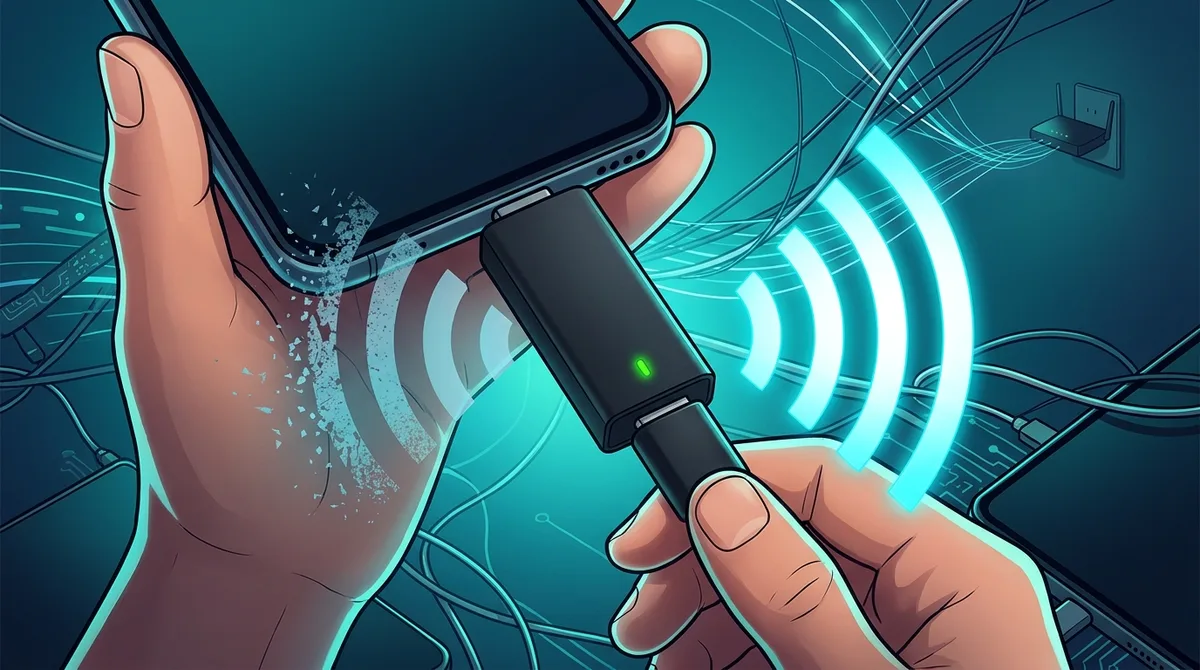
The Nano Controller costs $49.99 USD. It measures a little over 5 inches long, weighs 3.5 ounces, and has 18 standard gameplay inputs. Its input skips the TV’s Bluetooth connection and travels over Wi-Fi straight to the cloud server running your game. Xbox says this may reduce input latency, but it hasn’t published a measured reduction, so the speed benefit is still a promise.
Setup is where the chore begins. On Android, you need the Xbox beta app. On PC, you need Xbox Accessories, and PC users must also enroll in Xbox Insider first. You’ll also configure Wi-Fi and sign into a supported cloud experience with the same Xbox account that’s on the controller.
Even then, the test is narrow. It’s limited to the U.S., to supported smart TVs and the web, and to a subset of cloud experiences.
The Internet and Playtime Costs Nobody Mentions Up Front
Phone controls and Nano connect both depend on a cloud stream, and the stream has its own hardware demands. Xbox lists 10 Mbps download as the minimum for cloud play and recommends 5 GHz Wi-Fi. For the best performance, it says you want 20 Mbps on consoles, PCs, and tablets. A weak router can ruin a controller test before you even pick a game.
Playtime is the other meter. The Xbox Cloud Gaming page lists monthly included cloud hours of 5 for Game Pass Essential, 10 for Premium, and 15 for Ultimate. Once those hours run out, extra bundles cost $3.99 for 10 hours, $7.99 for 25 hours, and $11.99 for 50 hours.
Xbox said in September 2026 that the new hour limits were expected to affect 4% of subscribers. That’s a small slice, but if you’re in it, the meter can run out mid-campaign. Convenience doesn’t cancel the bill.
Touch Controls Are a Backup Plan, Not a Gamepad
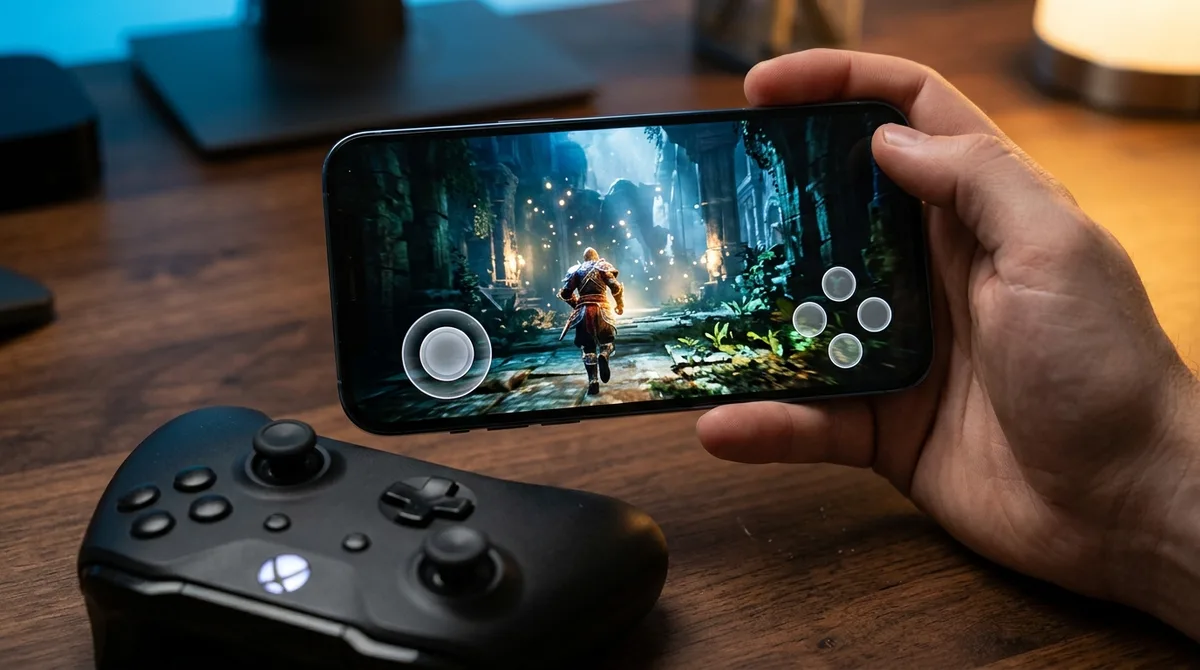
Phone controls solve one problem: you no longer have to hunt for a gamepad. They don’t solve the rest. Touch input has no physical buttons to feel for, no triggers to squeeze, and no stick to rest your thumb on during a tense boss fight. Tailored layouts exist for only some games, so a title without one leaves you hunting for the jump button. Long sessions also drain the phone battery while it runs the controls, so plug it in first. Nano sounds more responsive on paper, but its latency benefit is unmeasured and its setup takes more work.
Whether It Is Worth Testing Before It Leaves Preview
Own a supported smart TV, an Android or iOS phone, and no controller? Then phone controls are worth a short test. Pick a game you already know and see whether the touch layout holds up.
Hold off on Nano unless you’re in the U.S. and have time for the Xbox beta app or Xbox Insider setup. Watch for more supported games, a published Nano latency figure, and Nano reaching beyond the U.S.
Should You Bother Testing It Right Now
Start with a game you’ve already finished. That way, a clumsy touch layout tells you about the controls, not about your learning curve.
Then run a short session on 5 GHz Wi-Fi and watch the picture. If it stutters before your first boss fight, blame the router before you blame the phone.
Keep an eye on your cloud-hour meter during the test, too. A long trial can burn through an included allowance faster than you expect. Plug the phone in first, and stop the moment the touch layout starts costing you more than it saves.