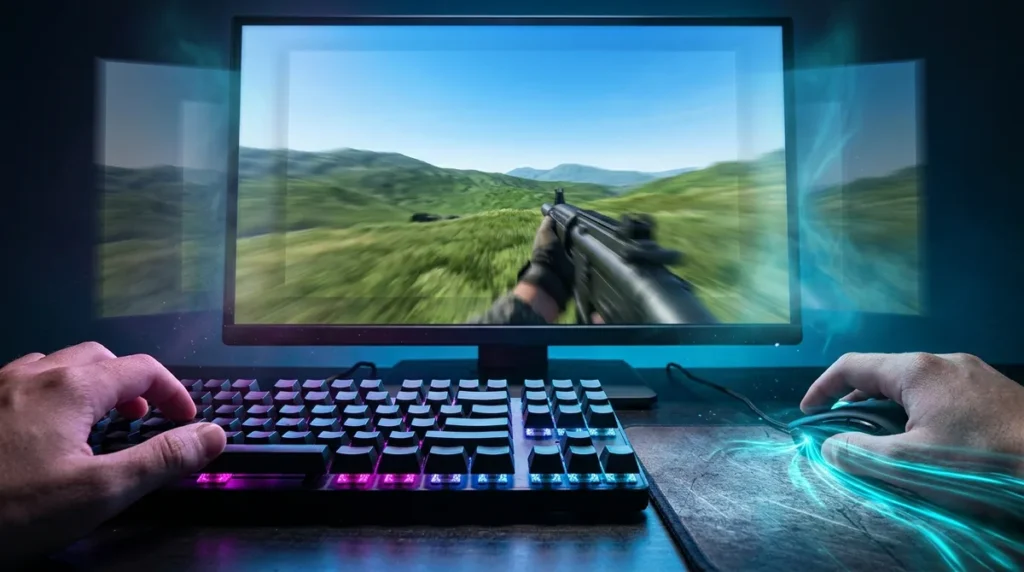
Gaming monitor input lag is the delay between a monitor receiving a signal and its pixels starting to change. At 60 Hz, a single refresh alone eats 16.67 ms of it. RTINGS defines it that way, and it’s the number that decides whether your flick shot lands before or after the other guy’s. It isn’t the same thing as response time, which is the slower part that happens after the pixels begin to move. Even a perfect monitor is only one slice of the total. Game processing, rendering, and your mouse or controller all add their own delay on top.
Refresh rate is the easiest place to see the physics. At 144 Hz, a refresh takes 6.94 ms, and at 240 Hz it drops to 4.17 ms. RTINGS’ minimum center-screen estimates put input lag at roughly 8.33 ms at 60 Hz, 3.47 ms at 144 Hz, and 2.09 ms at 240 Hz. Those gains are real, but they shrink with every step up, so the jump from 60 to 144 matters far more than the jump from 144 to 240. Keep those numbers in your head, because the spec sheet is going to work very hard to make you forget them.
Key Takeaways
- Input lag is the delay between a monitor receiving a signal and its pixels starting to change, with RTINGS’ minimum center-screen estimates at 8.33 ms at 60 Hz, 3.47 ms at 144 Hz, and 2.09 ms at 240 Hz.
- Response time is a separate stage, so a monitor’s low gray-to-gray rating does not establish low input lag, and shoppers should ask for the input lag number specifically.
- The jump from 60 Hz to 144 Hz is the upgrade gamers will actually feel, while the step from 144 Hz to 240 Hz is more of a polish, and a 2026 NVIDIA Research study found 101 FPS gamers could not tell 144 Hz from 360 Hz.
- Gamers chasing lower latency should turn V-Sync off for competitive play, set the render queue to its lowest practical value, max out their mouse polling rate, and switch their monitor to its game preset before buying a new panel.
- Anyone comparing monitors should only trust input lag figures that match their own refresh rate and resolution and were measured at the center of the screen.
Is Input Lag the Same as Response Time?
No. Input lag is the wait before the picture starts changing, and response time is how long the color change takes once it has begun. Input lag is the time from the monitor receiving a signal until its pixels start to transition. Response time is the stretch after that, while the pixels finish the change.
Buyers mix them up because both live on the same spec sheet, both are measured in milliseconds, and both sound like they mean “how fast the screen is.” They’re different stages of the same process, though. A monitor can start late and finish quickly, or start promptly and drag its feet. Only the first one decides when your flick shot appears on screen.
Gray-to-gray (GtG) is the number that causes the most confusion. It measures how quickly a pixel moves from one shade of gray to another. A low GtG figure tells you the pixel transition is quick. It tells you nothing about how long the display sat on the incoming frame before the pixels moved at all. A panel can have a flashy GtG number and still be sluggish where your input actually counts. A low GtG figure does not establish low input lag, so if someone is selling you on one, ask about the other number.
Now, the 1ms versus 5ms argument, which spec-sheet warriors have been having since the first 1ms badge showed up. Those headline figures are almost always response-time numbers. They’re real measurements of pixel transitions, and they’re not useless. But look at the gap. Four milliseconds is roughly a quarter of one refresh at 60 Hz, which is 16.67 ms. Arguing over those 4ms while ignoring the rest of the chain is like debating which brand of tires to buy while the car is parked in the wrong garage.
Input lag is also only one slice of end-to-end control delay. Game processing, rendering, and your mouse or controller all add their own time before anything reaches your eyes. How much that total matters to you is a fair question. A 2021 first-person aiming study compared 12 ms and 20 ms of system latency across 3,200 trials. The median task completion times were 1.348 seconds and 1.530 seconds, and only three of eight participants showed a statistically significant individual improvement at 12 ms. Some players feel every millisecond. Plenty of us are not those players, and the spec sheet never asks which kind you are.
So when a monitor brags about response time, ask the boring follow-up question: how long does it take to start moving in the first place? If the answer isn’t on the page, that tells you something too.
What Is a Good Input Lag for Gaming?
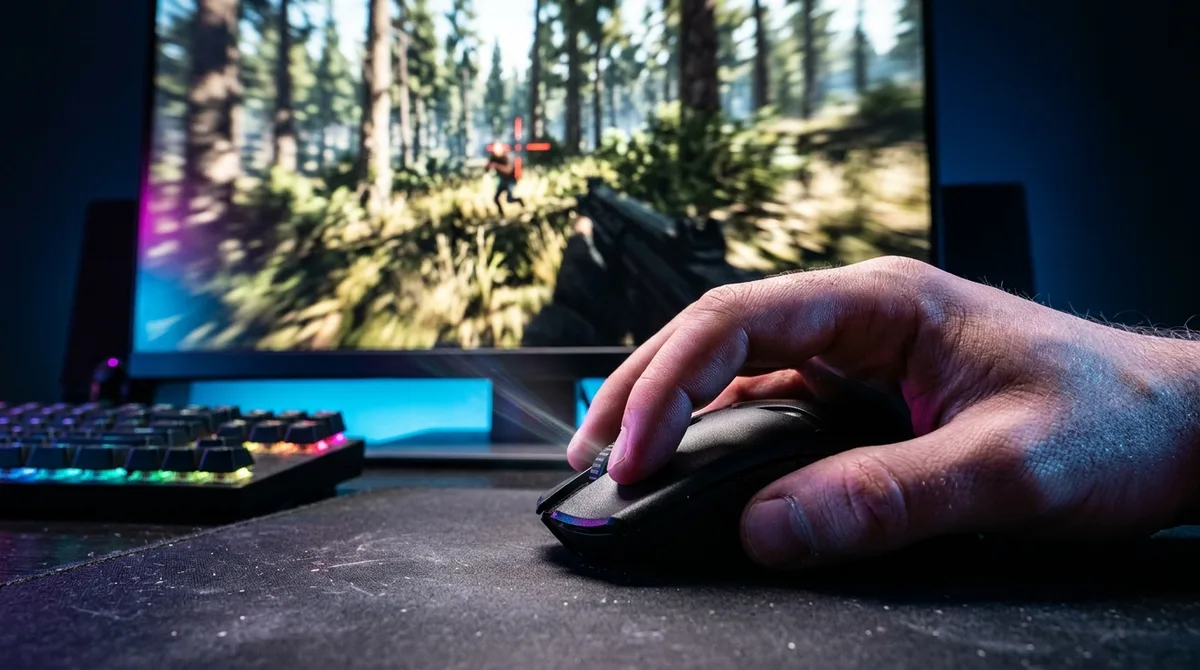
A good input lag figure is one that sits close to the physical minimum your refresh rate allows. The minimum center-screen estimates are 8.33 ms at 60 Hz, 3.47 ms at 144 Hz, and 2.09 ms at 240 Hz. A monitor can’t beat the limit its refresh rate sets, so the closer a result lands to these numbers, the less the display is holding you back.
The reason is simple. Each refresh takes a fixed amount of time, and the input lag minimum is tied to that clock. Here’s the full picture:
| Refresh rate | Frame time (one refresh) | Minimum center-screen input lag estimate |
|---|---|---|
| 60 Hz | 16.67 ms | 8.33 ms |
| 144 Hz | 6.94 ms | 3.47 ms |
| 240 Hz | 4.17 ms | 2.09 ms |
Notice where the big drop happens. Going from 60 Hz to 144 Hz buys you a chunk of milliseconds you can feel in a flick shot. Going from 144 Hz to 240 Hz still helps, but the gains taper. The spec sheet will try to sell you the 240 Hz number as if it were a revolution. It’s more like a polish.
Taper is the right word for the rest of it too. A 2026 study from NVIDIA Research found that 101 FPS gamers could tell 60 Hz from 360 Hz, but could not tell 144 Hz from 360 Hz, and their target-task performance didn’t significantly differ between those two. That doesn’t mean 144 Hz is the end of the road. It means the returns flatten fast, and you should be skeptical of any review that treats the last few milliseconds as the whole argument.
Now the caveat, because this is where people get fooled. The minimum is a best-case figure measured at the center of the screen. A panel refreshes from top to bottom, so a reading taken near an edge can come out different from a center reading. Test setup matters too. One reviewer might measure the full delay from signal to pixel change, while another reports only part of it. Two numbers with the same label can describe two different races.
So compare like with like. Match the refresh rate, match the resolution you actually plan to play at, and check where on the screen the measurement was taken. If one review quotes a 144 Hz result and another quotes a 60 Hz result, they aren’t competing against each other, and anyone who puts them side by side on a spec sheet is hoping you won’t check.
Does 144Hz Really Beat 60Hz for Competitive Play?
Yes, 144 Hz beats 60 Hz for competitive play, and most players will feel the difference during fast aiming. The gains stop climbing quickly after that first big step, though.
A 2026 study from NVIDIA Research tested 101 FPS gamers. They could tell 60 Hz from 360 Hz, but they could not tell 144 Hz from 360 Hz, and their target-task performance did not differ significantly between those two. If you’re paying extra for a 360 Hz badge, know that the players in that study couldn’t tell it apart from 144 Hz.
In a 2021 first-person aiming study, the 12 ms latency condition produced a median task completion time of 1.348 seconds, compared with 1.530 seconds at 20 ms. Only three of the eight participants improved significantly at the lower latency. The average looks convincing, but it hides the fact that most of the group did not show a significant individual gain.
The game and the task decide how much any of this matters. A tactical shooter where you snap onto a head at the edge of the screen rewards every extra millisecond you can get. A slower game, such as a city builder or a turn-based strategy title, won’t care whether the picture arrives a few milliseconds sooner. Before you upgrade for speed, ask what you actually do with your hands for the next few hours.
Frame rate has to keep up with the refresh rate, or the monitor can’t help you. A 144 Hz panel fed frames by a game that can’t reach that pace will show repeated frames, and you end up with a fancier version of the same choppy picture. Check how your game performs at your resolution and your settings, not at some benchmark setting nobody uses. A high refresh rate is only as useful as the frames you feed it.
Some of the most eye-catching spec-sheet claims come from games and tests that have nothing to do with your setup. Compare your game, your resolution, and your target refresh rate, and treat any number that skips those details as a sales pitch with a decimal point.
Why V-Sync, VRR, and Render Queues Add Hidden Delay
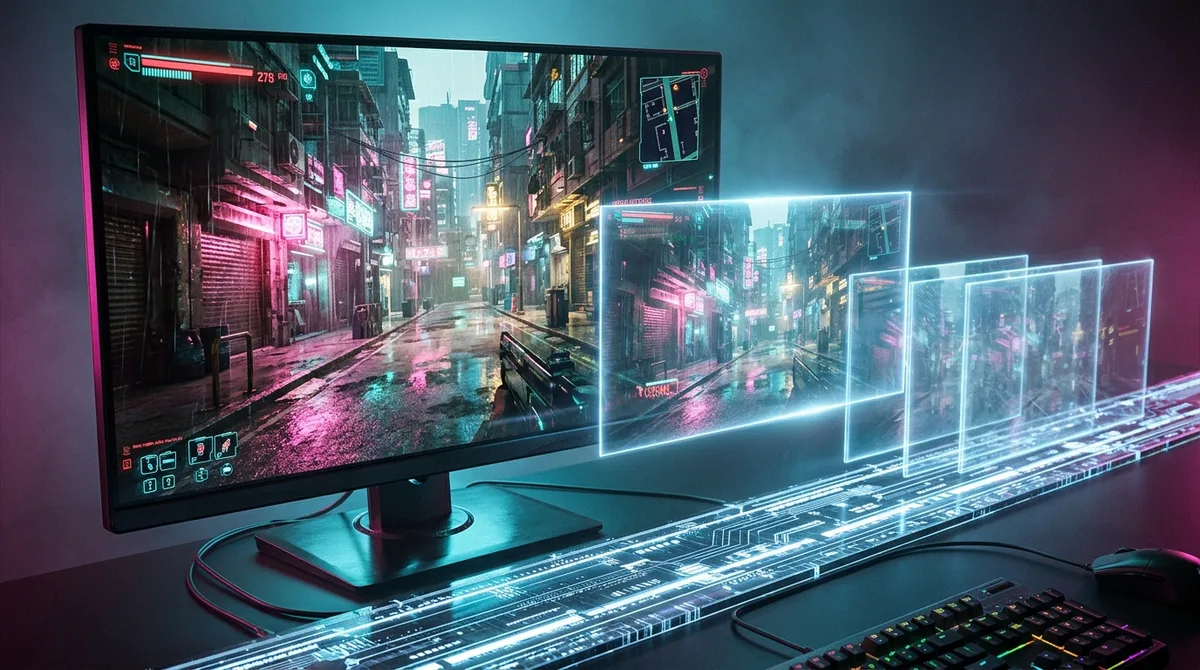
Plenty of players blame the monitor for lag that starts somewhere else. Before you spend money on a new panel, check the settings between your mouse and your screen, because those settings can add more delay than the display does.
V-Sync is the classic offender. It stops tearing by holding each finished frame until the monitor is ready to draw a new one. That wait is the point, and it’s also the problem. A frame that finishes just after a refresh starts has to sit until the next one, and at 60 Hz that means up to 16.67 ms of waiting before you see anything.
Variable refresh rate, sold under names like G-Sync and FreeSync, takes a smarter approach. The monitor refreshes when the frame is ready instead of keeping time with a fixed clock, which cuts tearing without the same forced wait. The catch is that the benefit depends on your setup. The graphics card, the monitor, the cable, the driver, and the frame rate all have to cooperate, and a game with unstable frame rates won’t behave like the box promised.
Render queues are the sneaky one. The graphics driver and the game can prepare frames ahead of time, which smooths out stutter but means your input waits behind frames built before you moved your hand. The “pre-rendered frames” setting controls how deep that line gets. Shrinking it is one of the most common fixes, and it trades a little smoothness for responsiveness. Nobody puts that trade on the box, so you have to go looking for it.
Two other places to check before you blame the glass are your peripherals and the monitor’s own picture modes. A mouse or keyboard with a low polling rate reports its position less often, and a wireless dongle or a flaky controller connection can add its own delay. The monitor’s Game Mode, or whatever the manufacturer calls its low-processing preset, often turns off picture processing that takes time. None of these are glamorous, and none will show up on a spec sheet. That’s exactly why they get ignored.
Work through the settings in this order:
- In the game’s video options, turn V-Sync off for competitive play, and only turn it back on if tearing bothers you more than delay.
- If you use variable refresh rate, cap the game’s frame rate a few frames below your refresh rate so the display never runs out of frames to sync to.
- In the graphics driver’s latency settings, such as NVIDIA’s Low Latency Mode or AMD’s Anti-Lag, set the render queue to its lowest practical value.
- In the mouse or controller software, confirm the polling rate is at its maximum and that wireless devices are connected with their dedicated receiver.
- On the monitor, switch to its game picture preset and turn off any sharpening or dynamic contrast options.
- Run your test again in the same scene, at the same resolution and refresh rate, and compare the result only against your earlier reading.
Do HDMI Cables and Game Mode Change Input Lag?
A cable almost never adds input lag on its own, but a bad one can make a game feel slow by degrading the picture or dropping the signal. Those problems are easy to mistake for delay.
Cables matter mainly for bandwidth. Every resolution and refresh rate combination needs a certain amount of data per second, and a cable that can’t carry it will limit the signal. The result rarely looks like a tidy slowdown. You might see the monitor quietly running at a lower refresh rate than you set, the resolution falling back to something softer, or the picture cutting out for a moment. Check the refresh rate in your display settings after changing anything, because a monitor stuck at 60 Hz when you asked for 144 Hz will feel laggy, even though the real problem is the cable.
Three symptoms point to the cable rather than the monitor. Dropouts are the obvious one: the screen goes black, the signal disappears, and the display reconnects. Sparkles are the sneakier one, showing up as specks or noise, often in dark scenes. The third is a refresh rate lower than the one you configured. If any of these show up, swap in a different cable before you start blaming the panel. If the problem disappears, you’ve found your culprit, and it cost you far less than a new monitor.
HDMI Auto Low Latency Mode, usually shortened to ALLM, is a different kind of feature. According to the HDMI Forum’s description of ALLM, a console, PC, or other source can signal a compatible display to switch automatically into a low-latency mode. That mode may disable some picture-processing features, and those features are exactly what take time. Handy, but there’s a catch. Manufacturers name their modes differently, and some still leave processing switched on. Your TV or monitor might call it Game Mode, Game Optimizer, or something equally vague, so check the menu for sharpening, noise reduction, and motion smoothing and confirm they’re off.
HDMI Quick Frame Transport is the newer and more technical piece. The HDMI Quick Frame Transport specification identifies it as a feature of HDMI 2.2, and it reduces the time needed to transport active video data by sending each frame at a higher rate. The practical point is that it only helps when both the source and the display support it. A cable with the right label doesn’t create it for you. If your console or graphics card and your monitor don’t both speak HDMI 2.2, QFT simply isn’t part of your setup, and no amount of cable shopping will change that.
So the order of operations is simple. Confirm the cable can carry your resolution and refresh rate, rule out dropouts and sparkles, then switch on the low-processing mode. Only after that is it worth asking whether the monitor itself is the bottleneck.
Panel Type, Strobe, and Size: Which Trade-Offs Matter?
The trade-offs that matter are motion handling, brightness, and how much of the battlefield fits on your desk. None of them replaces an input-lag measurement, and none should decide your purchase on its own.
IPS, VA, and OLED each give up something. IPS panels are the generalists, with good color and viewing angles, but they can smear dark transitions and their contrast is modest. VA panels deliver deeper blacks and stronger contrast, yet they often trail in pixel transitions, so fast dark scenes can leave a trail behind moving targets. OLED pixels switch quickly and produce true blacks, which is a real advantage in motion. It still doesn’t tell you how long the monitor waits before the pixels move at all, and that’s the number that shows up in your flick shots.
Strobe backlights attack motion blur from a different angle. The backlight flashes in step with each frame, so your eye sees a sharper image while the picture is moving. The bill comes due in two places. The flashing backlight is dimmer, so you’ll be fighting for brightness in a sunny room, and the flicker itself bothers some players enough to cause eye strain. Some strobe modes also restrict other features, so check the menu before you assume you can have everything at once.
To put a number on blur, ClearMR measures how many pixels stay clear compared with how many turn blurry during motion, using a Clear Motion Ratio. It launched in August 2022, and the Video Electronics Standards Association reported more than 70 certified display products by late 2023. That’s useful for comparing how sharp a moving image looks. It says nothing about how long the picture takes to start changing, so it belongs in your comparison next to input lag, not in place of it.
Screen size is the trade-off most players underrate. A smaller panel keeps the whole game in view at once, so you can watch the edges of the screen without swinging your head around. Esports players who spend their hours tracking enemies across a busy map tend to value that, because less head movement means less time hunting for the thing that’s trying to kill you. You give up immersion to get it, and a small screen makes a big open world feel like a postage stamp.
A larger panel flips that bargain. The extra size pulls you into the game and makes a sprawling landscape or a cinematic moment hit harder. The cost is that you’ll move your head and eyes more to take in the whole picture, and at the same resolution the pixels spread out, so the image can look a little less crisp. For a slow-paced game that’s a fine deal. For a twitch shooter, think hard about how much you’d miss the corners.
Does Panel Lottery Make Identical Monitors Feel Different?
Panel lottery is real, but it’s usually a small effect. Two units of the same monitor model tend to land close together on input lag, because most of that delay comes from processing that’s designed once and repeated across the whole product line. The bigger differences between units usually show up in how the panel behaves, not in the wait before the picture starts to change.
It helps to split the variation into two buckets. Panel variance is what the glass does: how fast its pixels transition, how even the backlight is, and how the corners behave compared with the center. Processing variance is what the electronics do before the pixels move, and that’s the part that sets input lag. The processing path is the steady part. The panel is where the lottery lives.
Unit differences can still create a real feel difference, though. A unit with stronger overshoot or smearing in dark scenes will look worse in motion, and you’ll notice that during a chase. A faulty unit might refuse to hold your target refresh rate or keep dropping into a softer picture mode. Those cases matter more than a fraction of a millisecond, because you’ll feel them every session.
To check whether your unit is actually slower, you need a reference. The best option is a second unit of the same model, using the same cable, the same port, the same firmware, and the same settings. If you don’t have a second monitor, a published measurement at your exact refresh rate and resolution works as a rough baseline, as long as it used the same test conditions. The Information Display Measurements Standard, version 1.3, released on May 31, 2025 by the International Committee for Display Metrology, is the sort of documented method that keeps those comparisons honest.
Set both screens to the same refresh rate, the same resolution, the same picture preset, and sharpening off. Measure at the same screen position each time, then repeat the test several times. A gap that holds steady across runs is real. A gap that bounces around is noise. Swap the monitors’ positions on your desk to confirm the difference follows the monitor and not the cable or the port.
Is it worth exchanging? If the gap is consistent and bigger than the step from 144 Hz to 240 Hz, which is about 1.38 ms on the minimum estimates, it’s worth a conversation. If the difference is a few milliseconds and you can’t feel it in a match, keep the monitor. Exchanging for a unit that’s no faster is a gamble, and you’ll spend an afternoon packing a box for the privilege.
How Do You Measure Monitor Input Lag at Home?
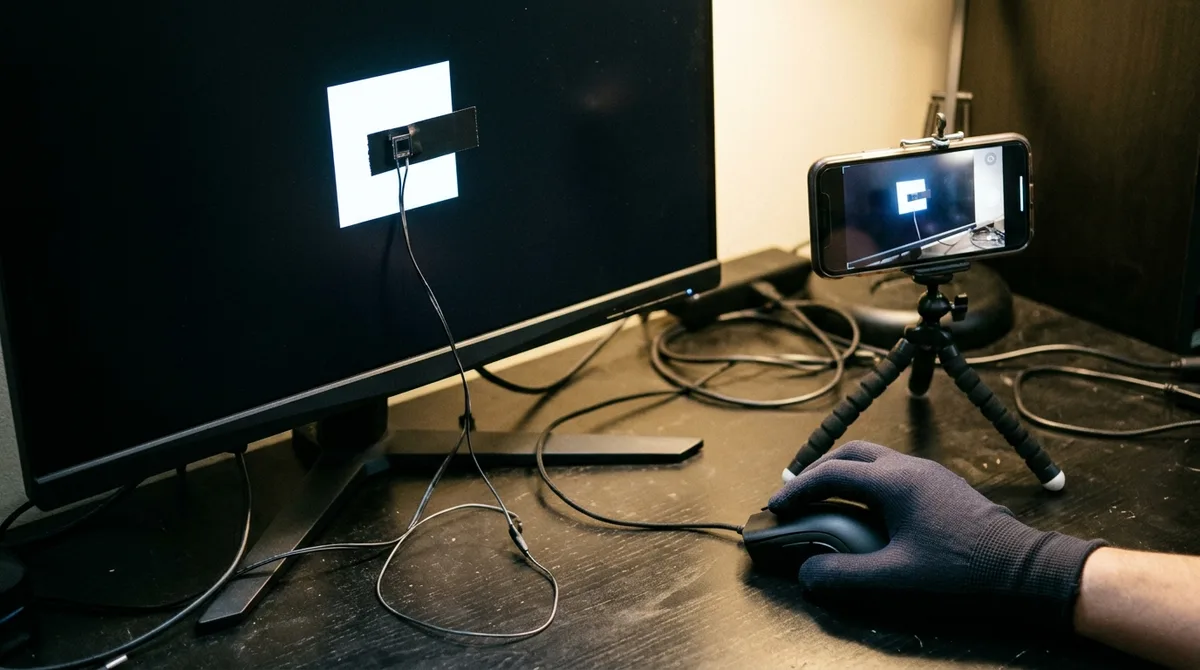
You can get a useful comparison at home by filming a moving image and the moment you press a button, then counting the frames between the two. The UFO test is the quick version most people try first.
The UFO test is the popular shortcut. You run a moving on-screen object, usually a little UFO gliding across the display, and photograph it next to a clock or a second screen showing the same thing. The gap between where the object should be and where the camera catches it hints at how far behind the display runs. It works well for ranking two panels against each other. Its limits are real, though. It gives you a relative offset rather than a clean millisecond figure, it depends on your camera’s shutter and frame timing, and it can’t tell you whether the delay came from the monitor, the cable, or the computer.
For a more honest reading, film the screen and the input at a high frame rate. Many phones offer a slow-motion mode, and at 240 frames per second each frame lasts 4.17 ms, which gives you a ruler you can count with. The trick is getting the input and the screen into the same shot.
The process goes like this, in the order that keeps the results comparable:
- Set the refresh rate, resolution, picture preset, and every processing option to the values you actually play with, then write them down so you can repeat them exactly.
- Pick one test scene or the UFO graphic and use it unchanged for every run, because a busy scene and a simple one can produce different timings.
- Choose a measurement spot, ideally the center of the screen, and use that same spot every time, since a panel refreshes from top to bottom and edges can read differently.
- Tape a small light or LED to your mouse button or controller trigger so each press shows up as a bright flash in the footage.
- Switch your phone to its highest frame rate slow-motion mode and frame the screen and the light in a single shot.
- Count the frames from the flash to the first frame where the target pixels begin to change, then multiply that count by the duration of one frame.
- Repeat the run several times and compare the median result rather than your single best attempt.
- If you have a second monitor, swap the two units’ positions on the desk and test again with the same cable and port.
Notice what the list asks you to do. Nothing in it is about how the monitor looks, only about how long it waits. Count the first visible change, not the full color transition, or you’ll end up measuring response time and calling it input lag.
Lab testing follows formal measurement standards such as the Information Display Measurements Standard, which spells out controlled equipment and conditions. Your desk will not match those numbers, and nobody should expect it to. What your desk can do is give you a consistent baseline. If Monitor A consistently lands a few frames behind Monitor B under identical conditions, that gap is worth trusting. If the numbers bounce around from run to run, your setup is the problem, and no spec sheet will fix it.
Picking a Monitor Without Getting Fooled by the Spec Sheet
Start by writing down the refresh rate and resolution you actually play at. Then look for an input lag measurement for each monitor on your shortlist at those exact settings. If a result was taken at 60 Hz and you play at 144 Hz, it answers a different question.
Next, read the fine print. Was the number taken at the center of the screen? Does it cover the full delay from signal to pixel change, or only part of it? If the page doesn’t say, move on. Spec sheets love a missing footnote.
Before you shop, measure the monitor you already own. Use the UFO method or a phone’s slow-motion mode with the settings you play with every night, and write down the frame count. Then test again with V-Sync off, the render queue lowered, and the monitor’s game preset on. You may find that your own settings were adding more delay than your panel.
Only then compare candidates against that baseline. A new panel has to beat your number by a gap you can feel in a match, not just on a spreadsheet. If the gain is a few milliseconds and your flick shots look the same, keep your money. Spend it on a cable that actually carries your refresh rate, or on a mouse with a proper polling rate, because those are the upgrades you’ll notice every time you play.