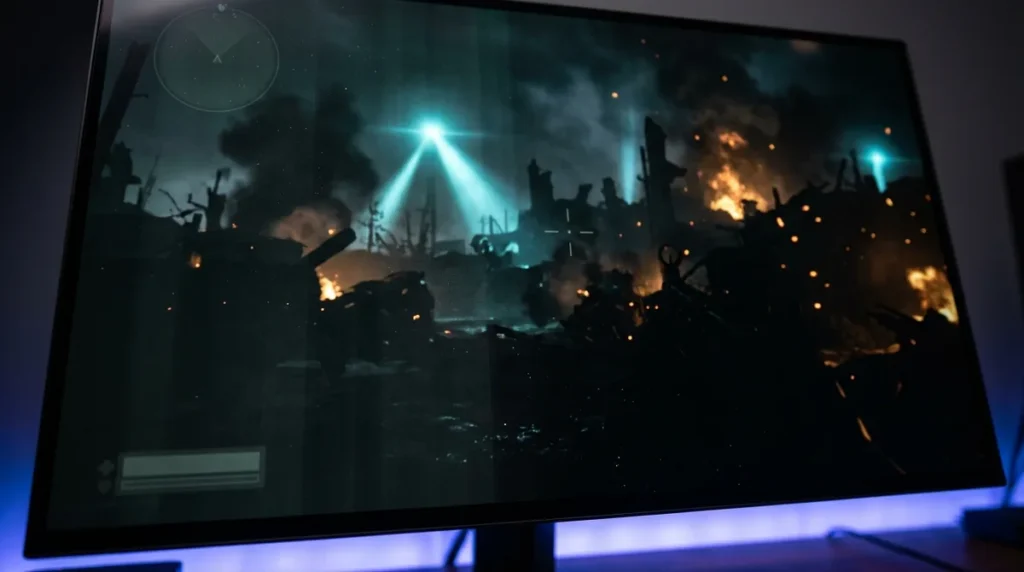
OLED gaming monitor burn-in is still a real risk, but it’s mostly a habit problem, not a lottery ticket. Burn-in is permanent, uneven pixel wear, usually caused by static elements like health bars, minimaps, and taskbars that age some pixels faster than others. RTINGS separates that from temporary image retention, which fades once the picture changes. A faint ghost of your HUD isn’t the same as a dead panel.
Price and coverage matter as much as the panel itself. Selected OLED gaming monitors ran from $1,399 to $1,699 in 2025, which is not pocket change to lose to a stuck taskbar. Some brands back their panels anyway. Dell’s AW3225QF spec sheet lists three-year coverage that includes OLED burn-in, but coverage varies by model and brand, so check the fine print before you trust the marketing. Good habits still matter more than warranties, because a warranty doesn’t un-burn your pixels.
Key Takeaways
- Static elements like health bars, minimaps, and taskbars cause most OLED gaming monitor burn-in, so your daily habits matter more than any spec sheet.
- Lowering brightness, auto-hiding the Windows taskbar, and varying what’s on screen reduce burn-in risk because brightness is the accelerator of pixel wear.
- Built-in routines like Samsung’s Screen Optimization can manage wear, but they cannot reverse burn-in once a monitor has it.
- Dell’s AW3225QF spec sheet lists three-year coverage that includes OLED burn-in, but warranty coverage varies by model and brand, so you should read the fine print before buying.
- A faint ghost of your HUD that fades once the picture changes is temporary image retention, not a dead panel.
Is OLED Burn-In Still a Problem for Gaming Monitors?
Yes, OLED burn-in is still a real problem for gaming monitors, but how much it matters depends on how you use the panel. Burn-in is permanent discoloration or fading caused by pixels that wear unevenly because they are used unevenly. A 2022 review in the Journal of Information Display defines it that way. In practice, pixels that show the same thing all day age faster than their neighbors, and they never catch up.
Image retention is the harmless cousin. It shows up as a faint ghost after a static image and disappears once the picture changes, so it doesn’t affect how later content looks. Burn-in is the one that stays.
Risk climbs with repeated bright, static content over long periods, which is why TVs are the scary case. A Samsung S95C TV developed visible CNN logo and ticker burn-in after up to 20 hours a day for 30 months. That was an extreme example, not a typical evening on the couch.
A gaming monitor is a different beast. Most of the time the picture changes constantly, which helps. But a desktop with a fixed taskbar, a health bar that never moves, and a minimap parked in the same corner for every session is a static layout sitting on the same pixels for hours. Burn-in doesn’t care how fun the game is.
Newer OLED TVs haven’t clearly beaten a 2017 model in a 10,500-hour static test, and they’re brighter, which doesn’t help. Meanwhile, the IEC 62341-5-3:2019 standard for measuring OLED image sticking excludes finished consumer products like monitors. The yardstick for your desk panel is thinner than you’d hope.
What Causes Burn-In on a Gaming Monitor?
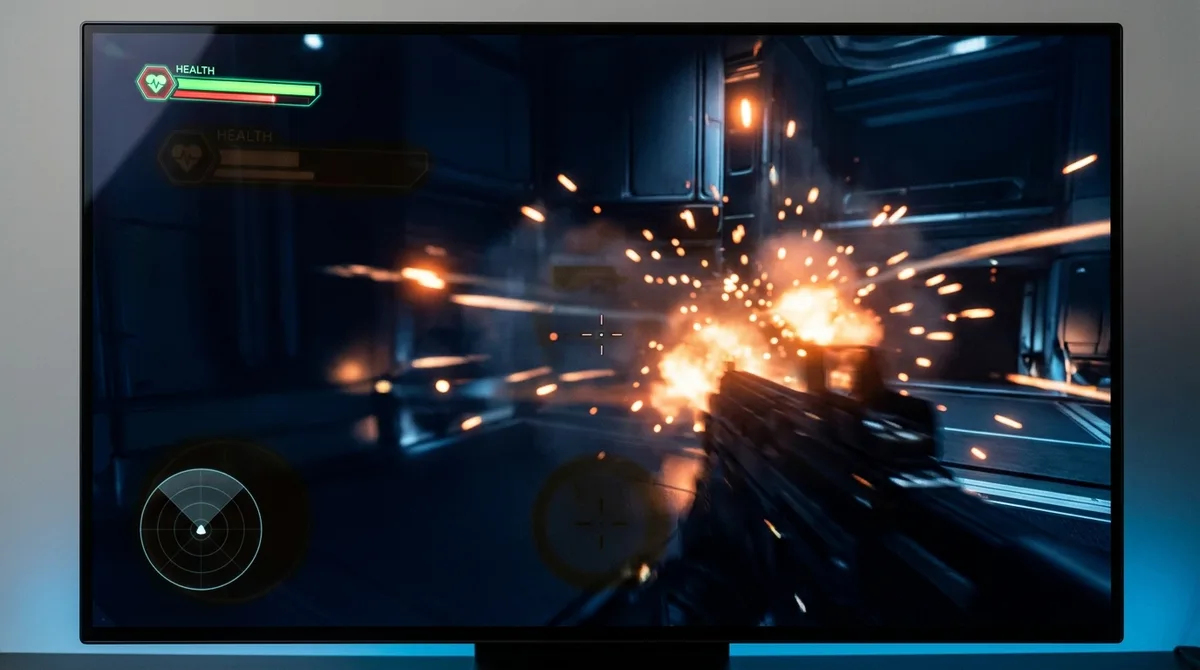
Static on-screen elements cause most gaming monitor burn-in, and the worst offenders are the ones you stare at hardest. Burn-in follows the shape of your interface. The pixels under a fixed layout get used over and over, while the rest of the panel rests when the picture changes. The usual culprits are:
- Health bars and shield meters that never leave their corner
- Minimaps parked in the same spot for hours of every session
- Ammo counters and hotbars that stay put while the world moves around them
- Taskbars and desktop icons that sit on the same pixels all day
- Channel logos and streaming watermarks, the same as on a TV
- Bright, static menus you leave open while you alt-tab to check something else
The real problem is uneven wear, not a single tired pixel. A health bar that burns into its pixels over months of play leaves the surrounding panel comparatively fresh. On a gray menu or a dim loading screen, that difference shows up as a faint ghost of your HUD, even though the game itself looked fine. One session won’t do that. Months of identical sessions will.
Brightness is the accelerator. A panel running hot pushes every pixel harder, so static content at full blast is the worst combination you can build. RTINGS ran its severe TV tests at each model’s maximum SDR brightness, which says a lot about where brightness sits in the wear equation.
Desktop use is the sneaky one. A bright white browser page, a spreadsheet with a fixed toolbar, and a taskbar that never hides can do more damage on a workday than your gaming does on a weekend. You don’t feel it happening, because nothing looks wrong until one day it does.
How Long Does It Take to Burn In a Gaming Monitor?
There is no universal burn-in clock for OLED gaming monitors, and anyone who quotes you a neat number is guessing. Wear depends on brightness, content, and hours of use, and no lab has published a lifespan for your specific panel.
The scary example comes from TVs. A Samsung S95C developed visible CNN logo and ticker burn-in after up to 20 hours a day for 30 months. RTINGS called that an extreme case, and it was. Nobody’s monitor sits under a news channel bug for that long.
A separate accelerated TV test found that 2020 to 2023 OLED TVs did not show a consistent reduction in permanent image retention compared with a 2017 LG C7 at the 10,500-hour checkpoint. Both models ran at their maximum SDR brightness. The newer sets were brighter, and brightness is the lever that speeds up wear, so the progress on paper didn’t translate into a safer panel.
Both are TV tests built to punish panels quickly, with static content and maximum brightness doing the heavy lifting. That makes them a useful stress test, not a calendar.
The IEC 62341-5-3:2019 standard covers how to measure OLED image sticking and lifetime, but its scope excludes finished consumer monitors. The lab yardstick doesn’t apply to the box on your desk, so there’s no official number to hold the manufacturer to.
Calendar years matter less than hours of bright, static pixels. A few hours a day of HUD-heavy shooter play parks a health bar and minimap on the same pixels, but the world keeps moving and the rest of the panel gets rest. A monitor left on a white browser page with a taskbar that never hides is a different risk, even if it’s switched on for fewer total hours.
So track what actually happens on the screen. If your desktop is the static part, fix that first. Auto-hide the taskbar, use a dark wallpaper, and drop the brightness before you start worrying about your favorite boss fight.
Do Built-In Panel-Care Routines Actually Help?
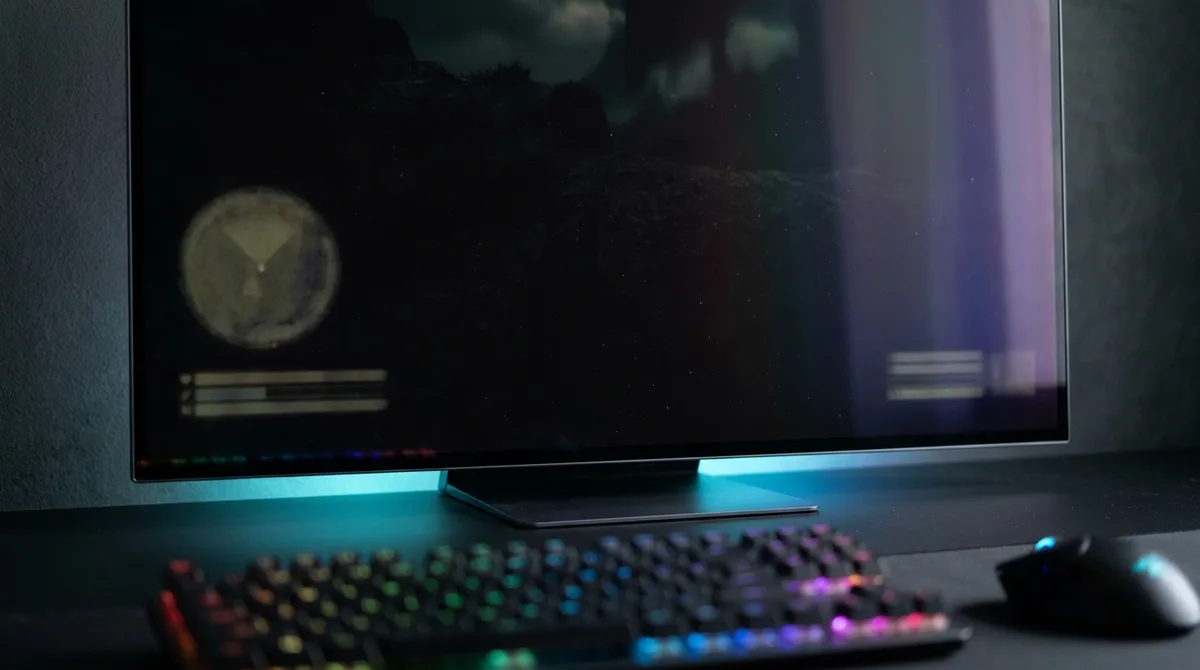
Built-in panel-care routines help, but they only manage wear. They can’t reverse burn-in, and nothing about them guarantees a clean panel. Samsung’s automatic Screen Optimization starts after at least four cumulative hours of screen use and takes about 10 to 15 minutes, according to Samsung Support. It runs only after you turn the monitor off, so a monitor you never switch off gets no help from it.
Samsung’s manual Pixel Refresh is the heavier option. It can keep the monitor off for more than an hour, and it isn’t available on every model, so check your menu before you plan an evening around it.
BenQ’s Pixel Refresh is much shorter, running for about six minutes on applicable OLED monitors. BenQ pairs it with Idle Dimmer, Logo Dimming, and Pixel Shift, which dim the screen when nothing changes, tone down static logos, and nudge the image slightly so the same pixels aren’t always lit.
Those routines are the backup. Your habits do most of the work. Lower brightness, because brightness is the accelerator. Vary what’s on screen, so no single HUD parks on the same pixels all week. Use a screen saver and short sleep timers so static content doesn’t sit there while you’re in the kitchen. Auto-hide the taskbar so it isn’t burning the same strip for hours. Each habit reduces risk, but none of them guarantees prevention, and a panel can still burn in even with good habits.
Setting this up takes one sitting, and the order matters:
- Lower the brightness to a level that’s comfortable in your room, not the factory peak.
- Turn on Idle Dimmer and Logo Dimming in your monitor’s menu, if your model has them.
- Set a short sleep timer so the screen goes dark when you walk away.
- Enable a screen saver with a moving or dark image.
- Auto-hide the Windows taskbar so it doesn’t sit on the same pixels all day.
- Switch the monitor off overnight so Screen Optimization or Pixel Refresh has time to run.
What Does Burn-In Warranty Coverage Really Cover?
Burn-in warranty coverage only covers what the fine print for your exact model says it covers, and that varies more than the marketing lets on. LG announced U.S. retail prices of $1,399 for the 34-inch 45GX90SA, $1,599 for the 39-inch 39GX90SA, and $1,699 for the 45-inch 45GX90SA in April 2025. Those are the sticker prices. The coverage attached to them is a separate question.
Dell’s AW3225QF spec sheet lists three-year Advanced Exchange Service and Premium Panel Exchange, and it names OLED burn-in coverage. Acer and other manufacturers also advertise three-year coverage, but usually for specific products only. A three-year promise on one monitor tells you nothing about the monitor sitting next to it on the shelf.
So check the listing before you check out. Confirm the exact model number, not the product family name. Read what the warranty counts as burn-in and what you’ll have to prove to claim it. Find out whether you get a replacement panel, a repair, or an exchange, and how the process starts. Make sure the coverage applies in your country, because a warranty that’s valid in one region may not follow you across a border.
LCD monitors skip this problem entirely. They don’t burn in the way OLED does, so you won’t need to decode panel-exchange clauses. They have their own trade-offs, though. Backlights dim over the years, and the picture loses some punch as the panel ages. You’re swapping one kind of wear for another, and it’s worth knowing which one you’d rather live with.
Which Burn-In Myths Are Worth Ignoring?
Three burn-in myths are worth ignoring: that it shows up in a few hours of play, that a screen saver fixes everything, and that a ghost on screen means the panel is dead.
Burn-in is not an overnight event. It builds over long stretches of repeated static content, so one marathon raid night won’t scar your panel. Repetition does the damage, not a single bad evening.
The screen saver myth has the most confidence and the least support. A screen saver only helps when the monitor is idle. The moment you alt-tab back to a full-screen health bar and minimap, the screen saver has done nothing for the hours of static content ahead of you.
Temporary image retention is not permanent damage. Retention is a faint ghost that fades once the picture changes. Burn-in is the version where pixels can no longer properly produce other colors, which is a much worse problem. A ghost after a loading screen is a warning, not a funeral.
So what does the real thing look like? It’s a faint, fixed shape, usually a HUD element, taskbar, or logo, that stays visible when the screen should be uniform. Check it yourself:
- Fill the screen with a solid mid-gray and look for a minimap or health bar outline in the corners.
- Open a full-white browser page and check whether the taskbar strip is still visible.
- Play content that changes constantly, then see whether the same shape remains once the picture has moved on.
Buying and Running an OLED Monitor Without Regret
Start with the monitor you already own. Open its menu tonight and look for Idle Dimmer, Logo Dimming, and any Pixel Refresh option. Then check your Windows taskbar. If it sits in the same spot with auto-hide off, turn auto-hide on before you change anything else.
If you’re shopping, pick the exact model number first and read its warranty before you add it to the cart. Product family names are where the vague promises hide. Find the spec sheet for that code and skip the ad copy. Dell’s AW3225QF sheet shows what a useful one looks like, with the coverage terms written out. If a retailer only says “three-year warranty” and never mentions burn-in, email the manufacturer and ask what the warranty covers before you pay.
Then match the panel to your habits. If you grind one game for hours with a fixed HUD, buy the panel you’ll dim the most, and plan on lower brightness from day one. If most of your screen time is desktop work, a dark theme and a hidden taskbar will do more for the panel than any setting on the box.
Keep the receipt, photograph the model label, and save the warranty PDF in the same folder. When something goes wrong in two years, you’ll be glad you didn’t have to hunt for any of it.