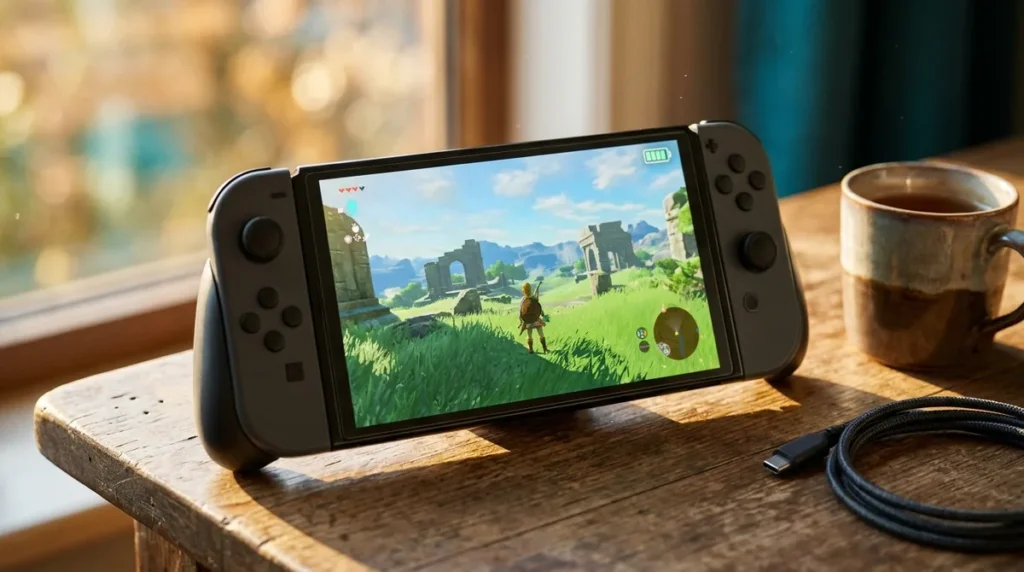
Nintendo rates the Switch 2 battery at about 2 to 6.5 hours per charge, and that spread is the whole story. The console’s 5,220mAh lithium-ion battery gives very different results depending on the game you’re playing and which features you have switched on.
A full charge takes roughly three hours in Sleep mode, so plan your day around the wall outlet. In one Tom’s Hardware test, Fortnite ran for 2 hours 16 minutes from a full charge at 50% brightness. That makes the top end of Nintendo’s range look optimistic.
Key Takeaways
- The Switch 2 delivers anywhere from about 2 to 6.5 hours per charge, and the game you play and the settings you choose decide where you land in that range.
- Screen brightness is the biggest battery drain on the Switch 2, so dropping the brightness to a comfortable level is the easiest saving you’ll get.
- Flight Mode switches off every wireless function on the Switch 2, which stretches battery life for offline single-player sessions but blocks online play, and it can’t be turned on while the Switch 2 is in TV mode.
- The Switch 2 needs roughly three hours for a full charge in Sleep mode, so plan your wall-outlet time before a trip instead of counting on a quick top-up.
- The Switch 2’s Stop Charging Around 80-90% setting costs you playtime per charge in exchange for a battery that ages more slowly, which makes it a good choice for docked players and a bad one for commuters.
Why Nintendo’s 2 to 6.5 Hour Range Is So Wide
Nintendo rates the Switch 2 at roughly 2 to 6.5 hours per charge, and the company is upfront that your results depend on the software and the functions you use. The console runs on a 5,220mAh lithium-ion battery, and that same cell has to power a sprawling open world and a relaxed puzzle game. The difference comes from what the hardware is being asked to do: how hard the processor works, how bright the screen glows, and whether the wireless radios are awake.
The gap shows up fast in real numbers. One early review ran Mario Kart World from 100% to 0% with brightness at maximum, automatic brightness off, and the screen around 400 nits. It got 2 hours 23 minutes. Lighter activities stretch that window considerably.
A mixed session of online Fall Guys, Mario Kart World with GameChat, and some Breath of the Wild lasted 3 hours 12 minutes. Treat figures like these as comparisons, not promises. Brightness, wireless use, and voice chat change from one test to the next, so each runtime only describes one setup. Use them to rank your own habits, like which game drains fastest or whether online play is worth the cost.
How Long Does the Switch 2 Battery Last in Real Games?
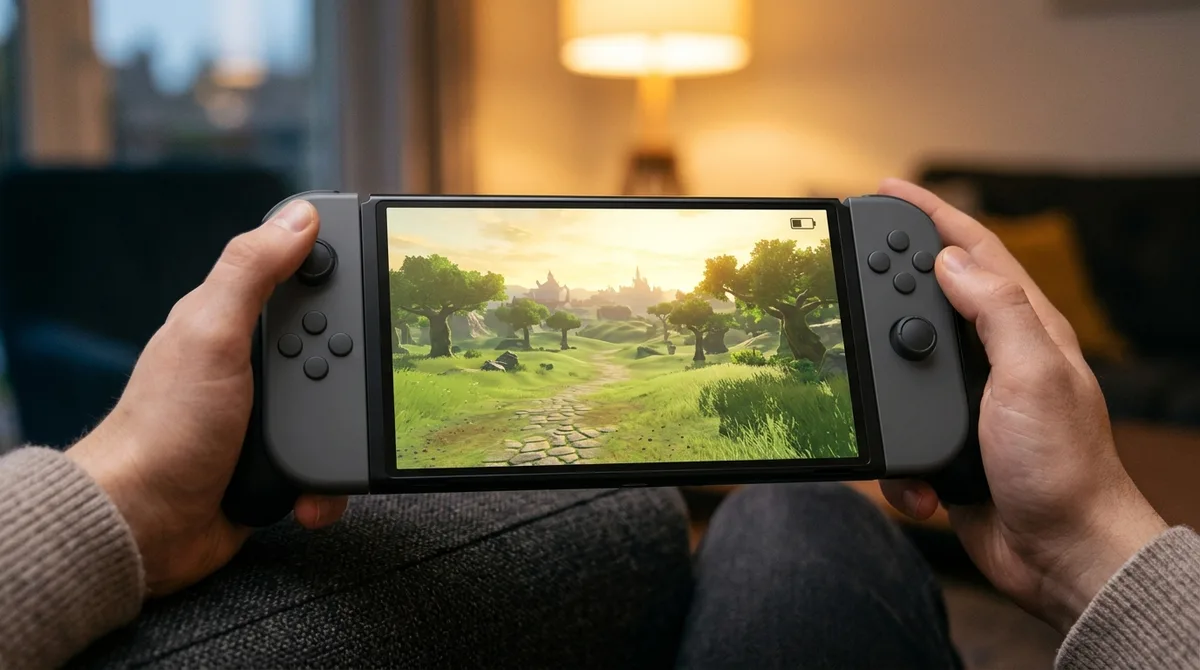
In independent tests, the Switch 2 ran for roughly two to just over three hours per charge. Demanding games sat at the bottom of that range and lighter play at the top. Fortnite lasted 2 hours 16 minutes from a full charge, with brightness at 50% and automatic brightness off, before the console shut down. Breath of the Wild ran 2 hours 56 minutes and 34 seconds in the same setup. The reviewer credited part of that gain to removing the wireless radio from the test, which is a reminder that Wi-Fi and Bluetooth are not free.
One maxed-out run sits near the bottom too. Mario Kart World went from 100% to 0% in 2 hours 23 minutes, with brightness at maximum, automatic brightness off, and the screen around 400 nits. A bright screen working hard is a lot to ask of one small battery.
Lighter sessions stretch the clock. One mixed session reached 3 hours 12 minutes. It combined 66 minutes of online Fall Guys, 77 minutes of Mario Kart World with GameChat, and 44 minutes of Breath of the Wild, all with automatic brightness on. That’s nearly an hour longer than the maxed-out Mario Kart run, and the difference comes down to the games and the settings, not luck.
Nowhere near Nintendo’s 6.5-hour upper figure, but that’s the point. Nobody’s commute looks like a lab test. Compare runtimes only when the conditions match, or you’re just comparing vibes.
What Drains the Switch 2 Battery Fastest?
Screen brightness is the biggest drain, followed by demanding games, online play with GameChat, wireless radios, and Sleep mode. Our rough ranking runs in that order because the screen is the part of the handheld you can control most directly.
- Screen brightness, especially at maximum
- Demanding games that push the processor and screen harder
- GameChat and online play, which add load on top of the game
- Wireless radios, meaning Wi-Fi and Bluetooth
- Sleep mode, which still draws some power
A bright screen at full output runs all session, and nothing else you do will fully offset it. Demanding games come next. A graphically heavy open world asks the processor and screen to work hard for hours, while a puzzle game barely troubles either. The game you pick sets the baseline before any setting changes.
GameChat and online play stack on top of that baseline. Voice chat and a constant connection keep extra hardware busy alongside the game, so a session with voice on asks more of the battery than the same game played quietly offline.
Wireless radios cost you power even when you aren’t thinking about them. The radio-free test showed how much they matter.
Sleep mode is the sneaky one. Nintendo doesn’t publish how much power it still uses, so don’t assume it’s zero. Treat it as a slow leak, not a full stop, and check the battery before you grab the console for the commute.
Should You Lower Brightness and Turn On Flight Mode?
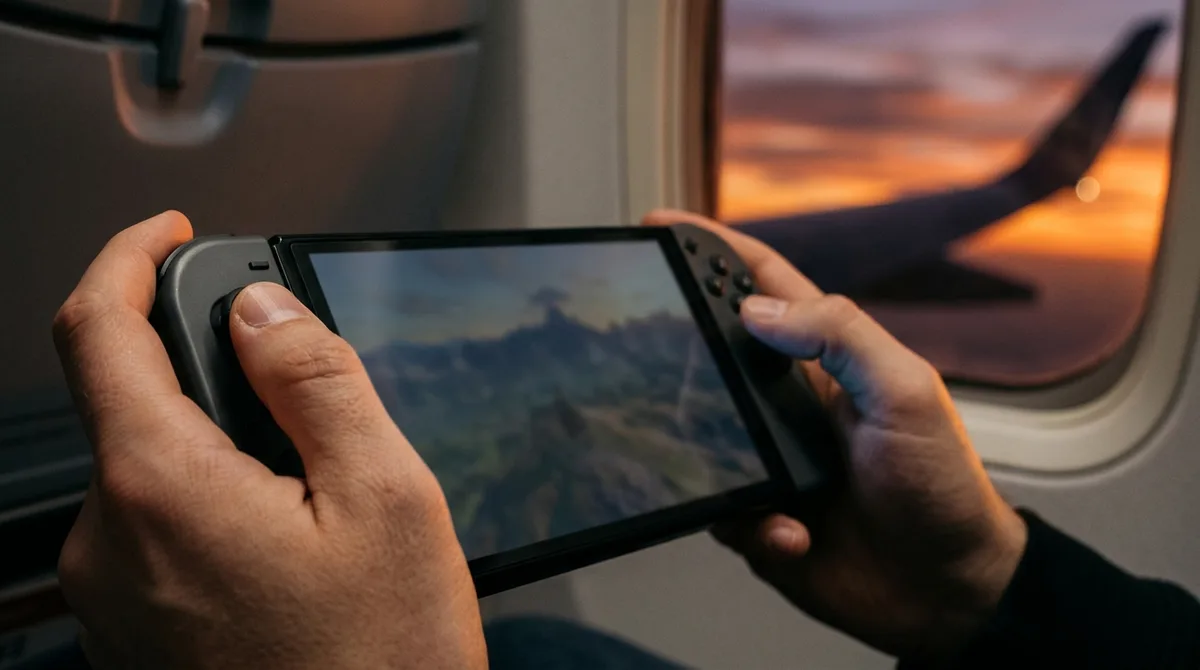
Yes, for offline single-player sessions, lowering brightness and turning on Flight Mode both stretch the battery. Quick Settings gives you two controls: a screen brightness adjustment and a Flight Mode toggle. Dimming the screen costs you nothing but some squinting in bright sunlight, so it’s the easiest saving you’ll get.
Flight Mode is the bigger lever. It switches off every wireless function at once: online communication, local communication, Bluetooth, and NFC. That means no online matches, no downloads, and no Bluetooth controllers or headsets until you turn it back off. On a train with a single-player adventure, that trade is easy. Waiting on a friend’s lobby, it isn’t.
There’s one catch. Flight Mode cannot be activated while the console is in TV mode, so the toggle only works in handheld or tabletop mode. Set it up before you leave the house:
- Undock the Switch 2 and switch to handheld or tabletop mode, since Flight Mode won’t turn on in TV mode.
- Open Quick Settings.
- Lower the brightness slider to a level you can still read comfortably.
- Turn on Flight Mode.
- Before you launch anything that needs a connection, turn Flight Mode off again.
Does Stop Charging Around 80-90% Hurt Playtime?
Yes, it shortens playtime per charge, but in exchange for a battery that ages more slowly. The Stop Charging Around 80-90% setting halts charging at about 80 to 90 percent, which reduces deterioration over time. The cost shows up in handheld or tabletop mode, where you start each unplugged session with less juice than a full charge would give you.
Nintendo says lithium-ion battery life gradually decreases over time and describes that decline as normal. The charge limit doesn’t stop the process, but it slows it down. For a console you plan to keep for years, that matters more than squeezing an extra half hour out of one train ride.
The setting also has a naming history. System update 21.0.0, released November 11, 2025, renamed it from “Stop Charging Around 90%” to “Stop Charging Around 80-90%.” The new label is more accurate, since the cutoff sits in a range rather than at a single point.
So the decision is simple. If you mostly play docked on the couch, the limit costs you almost nothing. If you’re the commuter who counts every minute on the train, you’ll feel the missing charge on the days you need it most.
Does Handheld Mode Boost Change Battery Life?
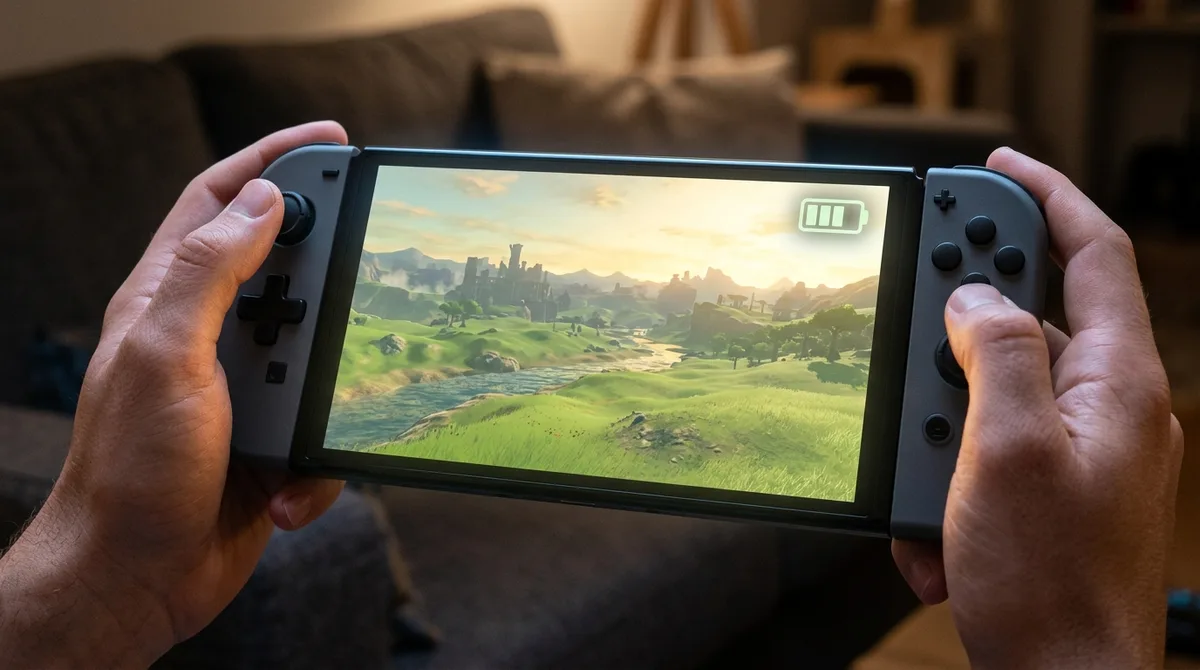
Handheld Mode Boost could change your battery life, and Nintendo hasn’t said by how much. The feature arrived in version 22.0.0 on March 17, 2026, and it makes compatible original Nintendo Switch software run as if the console were in TV mode. A smoother game sounds great, but extra performance usually costs extra power. Nintendo’s update notes describe the speed boost without saying what it does to battery life, so for now, nobody outside Nintendo can give you a number.
Treat it as a battery question, not a free upgrade. Pick one original Switch game you know well, then play one session with the boost off and another with it on. Keep brightness, Wi-Fi, and volume identical, and note the battery percentage at the start and end of each session. Repeat the test a few times before you trust the result, because one short session can mislead you. If the boosted run drains noticeably faster, you’ve got your answer, and you can decide whether the smoother frame rate is worth the lost charge.
How Do You Charge the Switch 2 Without Killing the Trip?
Nintendo puts a full charge at about three hours with the system off or in Sleep mode, so the wall outlet is a planning issue, not a quick top-up. Charging while you play does add power, but it doesn’t change how the game draws power. A demanding open world still drains the battery at the same rate. The charger just adds juice alongside that drain, which helps on a long couch session but won’t rescue a flight.
A power bank is the real trip saver. Its capacity and output decide how useful it is, and the exact numbers depend on the bank you buy, so check both on the label before you count on it. Stated capacity also overstates what you actually get, because some energy is lost in conversion. A bank with enough output to charge the console while you play beats a bigger one that only trickles power in.
A carrying case protects the console from scratches and pressure in a bag, and it keeps the charger and power bank together so you don’t leave one behind. For a trip, pack:
- A protective case that holds the console and the charger
- A charger and a short USB-C cable
- A power bank that fits in the same pocket as the cable
Setting Your Switch 2 Up for Longer Sessions
Start tonight with a test of the game you play most. Set brightness to a level you can live with, turn on Flight Mode, and play a full session. Write down the battery percentage at the start and the end. Then repeat the test with online play and voice chat on, using the same brightness.
Your own numbers will tell you more than any chart. If the offline session lasts noticeably longer, online play is your biggest drain, and you can save those sessions for when a charger is nearby.
After that, pick your charge setting based on how you play. If the Switch 2 mostly sits on a dock in your living room, leave Stop Charging Around 80-90% switched on and let the battery age more slowly. If it’s your commute machine, turn the limit off and charge to full before you leave the house.