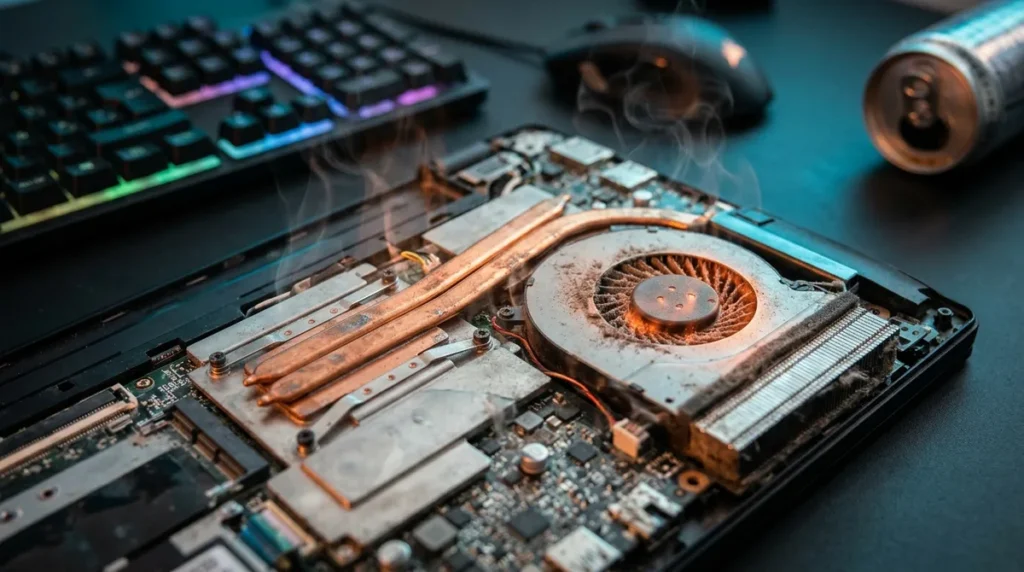
Gaming laptop thermal throttling is your processor deliberately slowing itself down when it gets too hot, and it’s why a smooth game can turn into a stuttering slideshow mid-match. When the chip hits its heat limit, it cuts clock speed and power to cool off. Intel describes this as reducing clock speed once temperature rises above the processor’s TJ Max or Tcase limit. On many chips, that ceiling sits somewhere between 100°C and 110°C, depending on the model.
Here’s the part the spec sheet won’t shout about: the laptop maker also decides how much power the chip gets in the first place. A thin, pretty machine can throttle while a chunkier one with the same processor stays fast. The fix isn’t always a new GPU. Sometimes it’s a clogged vent, a blanket under the chassis, or a power mode that turns the fans into a jet engine when you just wanted some quiet.
Key Takeaways
- Gaming laptop thermal throttling is the processor cutting its own clock speed to shed heat, so a sudden slideshow mid-match usually means the chip has hit its ceiling, not that the game is broken.
- Gaming laptop temperature readings mean little on their own, so check your processor’s TJ Max or Tcase limit, which often sits between 100°C and 110°C, and watch whether the CPU clock actually drops.
- Laptop makers decide how much power the chip can draw, so a gaming laptop’s power mode, such as ASUS Armoury Crate’s Silent, Performance, or Turbo settings, can change how fast the same processor runs.
- Gaming laptop overheating usually traces back to dust, blocked vents, background apps, heavy in-game settings, a warm room, or aging thermal paste, so the cheap fixes should come before any hardware work.
- Gaming laptops that still throttle on a hard surface with the power mode set high, or that have rattling fans, need a warranty check or a repair quote before any further tweaking.
Is Thermal Throttling Your Laptop Protecting Itself?
Yes, most of the time it is. The slowdown is the chip protecting itself before the heat damages it. When a processor reaches its thermal limit, it lowers clock speed and power so it can shed heat. That limit isn’t one universal number. It depends on the processor and the laptop around it, so a single temperature reading tells you very little on its own.
Think of the thermal limit as a smoke alarm with a hair trigger. The processor doesn’t care whether your game was running at a smooth, high frame rate or a sad, stuttering one. It only cares that the temperature keeps climbing. What you notice is a frame rate that falls off a cliff and stutters, usually in the exact fight you were trying to win.
The part that matters more is who sets the budget. The laptop maker decides how much power and current the chip is allowed to draw. Two machines with the same processor can behave like different animals. One has a cooling system built for sustained load and a generous power allowance. The other is tuned to stay quiet and look thin in the store.
ASUS makes this control visible. Its Armoury Crate software offers Silent mode, which limits CPU and GPU power, and Turbo mode, which maximizes that power along with maximum fan airflow. Turbo is only available in charging mode on supported laptops. So the same chip gets a different budget depending on which mode you picked and whether the power brick is plugged in.
The practical test is simple. Play a demanding game for a sustained session, not a quick match, and watch your frame rate and CPU clock. If performance drops after the machine has warmed up, and the drop lines up with the fans roaring, you’re looking at throttling. If the game runs fine for the first few minutes and then turns into a slideshow, the chip is hitting its ceiling.
How Do You Know Your Laptop Is Throttling?

You know your laptop is throttling when performance falls during a long session and the CPU clock falls with it. The clues are easy to spot once you know what to look for. The frame rate starts high, looks great early on, then sinks as the machine heats up. Stutter that only appears once the fans are roaring is another giveaway.
Reduced CPU speed and stuttering during games are the signs that matter most. A short match tells you almost nothing, because a cold laptop will run fast for a few minutes before anything changes. Watch for these patterns:
- A frame rate that starts high and slides as the session goes on
- Stutter that shows up only after the fans get loud
- CPU clock speed dropping during gameplay while the scene stays the same
To confirm it, install a monitoring tool such as HWiNFO or MSI Afterburner and log CPU temperature, GPU temperature, CPU clock, and GPU clock on the same graph. Play one demanding game for a full session and watch all four together. If the clocks fall while temperatures sit at their highest, the chip is protecting itself. If temperatures climb but clocks hold steady, the cooling is coping and your problem is probably somewhere else.
A single temperature reading is not a diagnosis. Look up the TJ Max or Tcase limit for your processor in its specifications, then compare what the monitor shows against that number. Then check whether performance actually changed. A laptop that runs hot but holds its frame rate is not broken, no matter how alarming the number looks in a screenshot.
Fair testing matters too, or you’re just comparing vibes. Use the same game, the same graphics settings, and the same room. A laptop on a desk near a sunny window in summer is not the same test as one on a bed in winter, so note the room temperature and the surface the laptop sits on. Play the same stretch of the game each time, ideally the same map area, and run it for the full session. Save both logs so you’re comparing two graphs instead of two memories.
Is 90 Degrees Too Hot for a Gaming Laptop?
No, a high temperature reading alone doesn’t mean your gaming laptop is too hot. The number only means something once you know the limit it’s measured against. Intel says the processor Tjunction max varies by product and is usually between 100 and 110 degrees Celsius. Intel also advises checking your specific model’s specifications rather than treating that range as a universal target. A chip with a ceiling near the top of that range and a reading well below it has room to spare. A chip with a lower limit might not.
A laptop holding a high but steady temperature while your game runs at a smooth, consistent frame rate is doing its job. Temperature is the number you can see, but frame rate and clock speed are what you actually feel.
High but stable is a different situation from hot and climbing. In the first case, the temperature rises in the first few minutes, levels off, and the CPU clock stays at its normal boost speed for the rest of the session. The fans are loud and the chassis is warm, but you’re dealing with noise and battery drain, not lost performance. In the second case, the temperature keeps creeping upward, the clock falls, and the frame rate sinks in the same fight where it used to hold.
Location changes the reading too. A laptop on a wooden desk runs cooler than the same machine on a duvet, because the blanket traps the air the fans are trying to pull in. If a scary reading came from a bed, move the laptop to a hard surface and run the test again before you blame the processor.
If the number scares you but the frame counter looks fine, the laptop is fine. Your blood pressure is the part that needs cooling.
What Actually Makes Gaming Laptops Overheat?
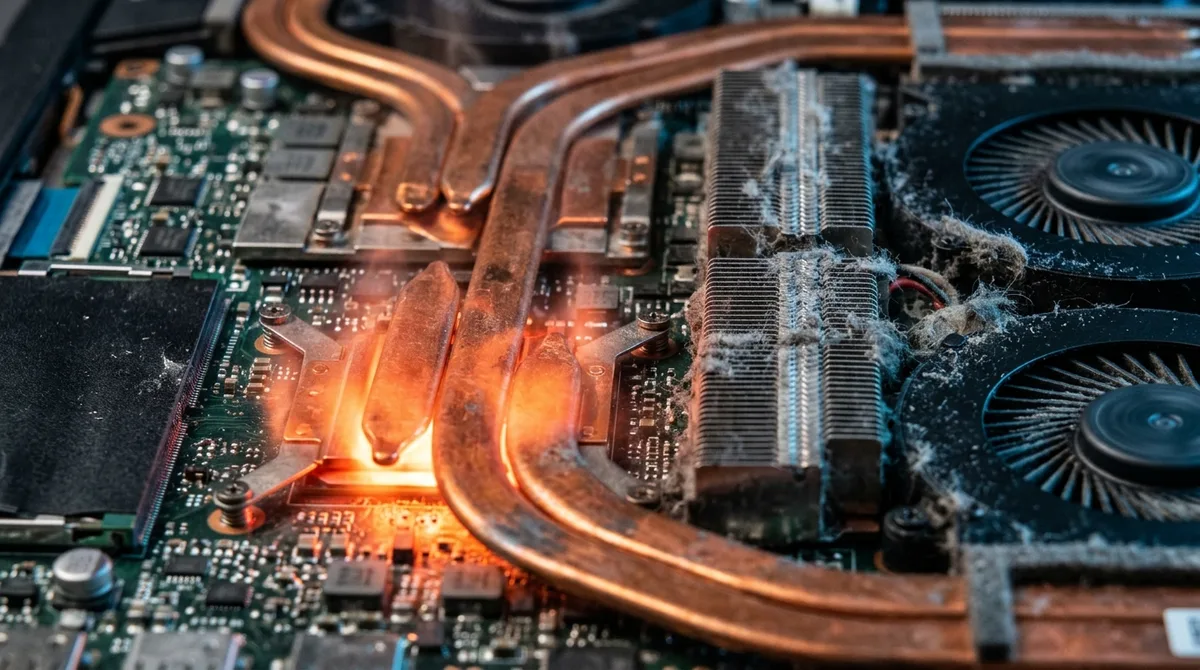
Most gaming laptops overheat because they’re asked to push more heat out of a small box than the cooling was built for, and everyday habits tip them over the edge. The usual suspects are dust, blocked airflow, background clutter, aggressive settings, a warm room, and cooling hardware that has quietly aged.
Dust is the least glamorous culprit. The fans pull air through the vents and blow heat out through the fins, and a layer of lint on those fins turns that airflow into a polite suggestion. Lenovo recommends clearing lint, dust, and debris from the vents with compressed air, but only while the machine is powered off. Do it on a flat hard surface so the intake isn’t buried in whatever you’re sitting on.
Background junk is the sneaky one. A browser with dozens of tabs, a launcher updating in the corner, a streaming app, and a video call all take processor time before your game even starts. Open Task Manager, sort by CPU, and look at what’s eating the chip. You’ll usually find something you forgot was running, and occasionally something you’re fairly sure you uninstalled.
Heavy in-game settings are the obvious one. Max shadows, huge draw distance, and ray tracing keep the GPU and CPU working harder for longer, and the heat builds with every frame. Drop one setting a notch and see whether the temperature and frame rate behave differently. You may find the visual difference is small and the thermal difference is not.
A warm room quietly shrinks your margin. The chip starts closer to its limit, so a session that’s fine in a cool study can throttle in a stuffy bedroom with the radiator on. Less headroom means the ceiling arrives sooner.
Aging thermal paste is the one vendors rarely bring up. It sits between the processor and its cooler, and over time it can dry out and stop moving heat as well as it once did. Replacing it means opening the chassis, cleaning off the old compound, and applying fresh paste with care. That’s an advanced job involving tiny screws and delicate cables, not a casual weekend fix. If you don’t have the steady hands and the patience, leave it alone.
Power Modes: Trading Heat, Noise, and Battery Life
Windows gives you the first set of dials. Open the power settings and you’ll find Best power efficiency, Balanced, and Best performance. Best performance maximizes what the chip can do, which is what you want mid-raid and what you don’t want while answering email on the couch. Not every Windows 10 PC offers that last option, so if it’s missing, check your hardware before assuming something is broken. The full list lives in Microsoft’s power mode guide.
Laptop makers add a second layer on top. ASUS Armoury Crate offers Silent mode, which limits CPU and GPU power, and Performance mode, which balances performance, temperature, and acoustics. Turbo mode maximizes CPU and GPU power and pushes the fans to maximum airflow. Turbo only works in charging mode on supported laptops, so unplug the power brick and it disappears from the menu.
Every step up costs something. More power means more heat, the fans have to work harder to move it, and the battery drains faster. The right choice depends on where you’re playing. Plugged in at a desk, Best performance or Turbo makes sense if you can live with the fan noise. On battery, Balanced is usually the sane pick, since the power allowance is smaller and the speed you gain may not justify the drain. Silent suits a late-night session when the rest of the house is asleep.
Don’t assume your model has every option. Some laptops offer the full set, some offer two or three, and some hide the controls inside a utility you never installed. Check the software your laptop maker ships, or search its support page for your exact model number. Then test. Run the same game in two modes, log the clocks and temperatures, and compare the frame rate. If the faster mode holds steady and the fans sound like a hair dryer, you’ve found your setting. If it still throttles, no power mode will fix the underlying problem.
Fixes to Try Before You Open the Case
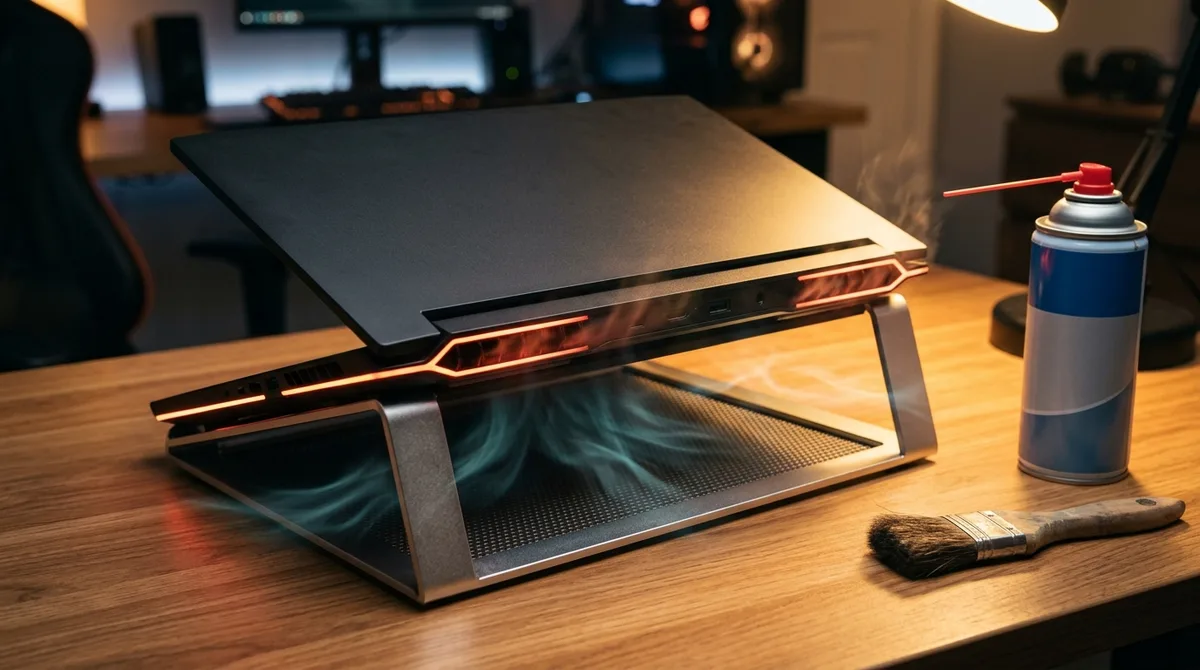
Work through these in order. None of them need a screwdriver, and you can finish the whole list in one evening.
- Shut the laptop down completely, unplug the power brick, and blast the vents and fan intakes with compressed air in short bursts. Keep the can upright so you don’t spray liquid onto the board.
- Set the laptop on a flat, hard surface such as a desk or a tray table. Keep it off your lap, your bed, and the couch cushions, since all three block the intake.
- Open Task Manager, click the CPU column to sort by usage, and close anything you don’t need during play. Launchers that update in the background, browsers with dozens of tabs, and screen recorders are the usual offenders.
- Open the game’s graphics menu and lower the heaviest settings first: shadows, draw distance, and particle or post-processing effects. Change two or three at a time so you can tell which one actually mattered.
- Pick a power mode that fits the session. Plugged in, try Performance or Turbo if your model offers it. On battery, Balanced is the sensible default.
- Play the same stretch of the game for a full session with your monitoring tool logging. Compare the frame rate and CPU clock against your earlier log.
A cooling pad can help by pulling more air across the underside of the chassis, and for some machines that means a few degrees and a slightly calmer frame rate. Think of it as a helper, not a repair. A pad can’t fix a cooling system that’s failing. If the fans rattle or stop spinning, the vents stay hot after a proper clean, or the clock keeps falling on a hard surface with the power mode set high, the problem sits inside the machine, and no amount of airflow will hide it.
Before you go any further, read the warranty terms with the laptop maker. Opening the chassis can affect your coverage, and the rules differ by brand and model. Check the support page for your exact model number first. If the laptop is still under warranty, a repair shop may be the smarter move than a screwdriver.
When to Stop Tweaking and Start Shopping
Stop tweaking when your log says the fixes are done. If you’ve cleaned the vents, moved the laptop onto a hard desk, closed the background apps, and lowered the heaviest settings, but the CPU clock still falls at the same point in a long session, more airflow tricks won’t save it. Your next step is the warranty.
If the laptop is still covered, contact the laptop maker with your monitoring log in hand. A graph showing the clock dropping is much harder to brush off than “it feels slow.”
If the warranty has expired, the warning signs are the ones to act on: rattling fans, vents that stay hot after a proper clean, or a clock that keeps falling on a hard surface with the power mode set high. Get a repair quote before agreeing to anything. Costs vary by model and shop, so ask what the work includes.
If you’re shopping for a replacement, don’t buy on the spec sheet alone. Look for reviews that run a long session and report sustained clocks, not just a five-minute benchmark. A laptop that holds its frame rate through a long session beats one that wins a short test and then slides mid-match. Check whether the model offers a performance mode and a utility that exposes it, because a locked power budget is the one problem you can’t tweak your way out of.