

Gaming laptop reviews are only worth trusting when they show their homework. A GPU name and one shiny performance score tell you very little about what you’ll actually get. Recent RTX 5070 laptops run anywhere from about $1,300 to $2,700, so be suspicious of anyone who says “it has a 5070, so it’s fast.” Price, cooling and power limits all change the result. RTINGS runs its laptop benchmarks three times, with a two-minute break between runs, in a 22 °C (71.6 °F) room with the laptop plugged in, then reports the average. That’s the kind of detail that separates a test from a brochure.
That’s the standard we’re holding every number in this guide to. Frame rates need context, heat and fan noise matter more than spec sheets admit, and battery life depends entirely on whether you’re browsing or blasting a game. Expect straight talk, a few jokes about marketing decks, and zero pretending that a laptop hitting a shaky frame rate on Medium settings is a triumph. Read the configuration, check the test conditions, and only then trust the chart. Otherwise you’re buying a vibe, and vibes don’t render at 60 FPS.
Key Takeaways
- Trust a gaming laptop review only when it names the test conditions, such as whether the laptop was plugged in and the room was 22 °C (71.6 °F), and when it averages repeat runs the way RTINGS does across three passes.
- Judge frame rates by their 1% lows and by the exact game, preset and resolution, since the MSI Katana 17 HX hit 39 FPS in Cyberpunk 2077 at 1080p on Medium but 85 FPS in Red Dead Redemption 2 on Medium.
- Plan for heat and noise under load, because the Gigabyte Gaming A16 reached 54 to 55 dB(A) in Game Mode, and plan battery life around gaming rather than its 7 hours 42 minutes of Wi-Fi web browsing.
- Compare RTX 5070 laptops, which run from about $1,300 to $2,700, only after matching RAM and storage, because a pricier machine that delivers the same frame rates is charging you for its chassis, not its performance.
Is a Gaming Laptop Worth Getting in the First Place?
Yes, a gaming laptop is worth buying if you want one machine that runs games, comes along to class or your sister’s place, and fits in a backpack. If you already own a desk, a monitor and a tower, it’s usually the more expensive way to play the same games.
Portability is the whole pitch. A screen, keyboard, battery and graphics chip live in one slab, so your library goes wherever you go without a tangle of cables. That convenience has a price tag, and it’s not a small one. Squeezing a GPU and a CPU into a chassis you can carry means every watt and every degree becomes a negotiation.
The first compromise is money. The MSI Katana 17 HX that Tom’s Hardware reviewed came with an RTX 5070, 16 GB of RAM and a 1 TB SSD for $1,300, which is a sensible entry point for that GPU. Move up to the Razer Blade 14 (2025) and the numbers climb fast. Windows Central lists it starting at $2,299.99 with an RTX 5060, and the RTX 5070 configuration with 32 GB of RAM at $2,699.99. You’re paying for a thinner, fancier machine, and the gap between the cheapest and priciest RTX 5070 laptops is big enough to buy a very nice monitor.
The second compromise is physics. A desktop graphics card gets a big heatsink, room to breathe and a case full of fans. A laptop gets a small box and has to push all that heat out of it. The result is fan noise you’ll hear across the room and a keyboard deck that gets warm during long sessions. Battery life takes a hit too, because a gaming laptop running a demanding game is basically a space heater with a screen. Unplugged, it may last a few hours of browsing and far less than that in a game.
So the real question isn’t whether the laptop has a good graphics chip. It’s whether it runs your games at settings you can live with. Spec sheets love the best-case scenario: low resolution, lowest detail, plugged in, cool room, and nobody opening a browser tab. Real life is Medium settings, a warm lap and a fan that sounds like a hair dryer with ambition.
Take the Katana 17 HX. In the Tom’s Hardware review it managed 39 FPS in Cyberpunk 2077 at 1080p on Medium, and 85 FPS in Red Dead Redemption 2 on Medium. Some players will shrug at the first number and be perfectly happy. Others will look at 39 frames and feel their soul leave their body during a firefight. Neither reaction is wrong. It just tells you the same laptop can be a bargain for one person and a letdown for another.
That’s why the rest of this guide sticks to specifics. Frame rates, heat, noise and battery life all need their test conditions attached, or they mean nothing. Keep that in mind, and a gaming laptop can be the right tool. Ignore it, and you’re just buying a logo with a fan inside.
What Do Frame Rate Numbers in Gaming Laptop Reviews Mean?

A frame rate number tells you how many frames a laptop drew during a stretch of play, and on its own it’s only half the story. The average shows typical speed. The 1% low shows how bad things get in the ugliest moments, when the explosions start and the game stutters like it’s hiccupping through a bad jump.
Average FPS answers “how fast does this usually run?” The 1% low answers “how rough does it get when the screen is full?” Those are different questions. A review that gives you only the average is hiding the second answer, and a laptop can post a cheerful average while feeling like it’s tripping over its own shoelaces every time a crowd shows up.
Careful testers measure frame times, the gap between each frame drawn, then average the slowest 1% of those gaps and convert the result back into FPS. Run that across three passes and you get a 1% low you can compare between machines. A good benchmark measures the stutter, not just the highlight reel. Around 60 FPS is the mark that counts as a good value, which is a fair bar for a machine you’re paying real money for.
The bigger trap is treating one number as a verdict on the whole laptop. The MSI Katana 17 HX managed 39 FPS in Cyberpunk’s workload is brutal, at 1080p on Medium settings, then hit 85 FPS in Red Dead Redemption 2 on Medium. Same chassis, same GPU, same cooling. Cyberpunk’s workload is brutal, Red Dead’s is kinder, and the number you see depends entirely on which game the reviewer picked. A laptop isn’t fast or slow in the abstract. It’s fast or slow at a specific game, at specific settings, at a specific resolution.
Those variables do real work. Drop a demanding game from Medium to Low and the frames climb. Crank it to Ultra and they fall. Push the resolution higher and the GPU has far more pixels to fill, which costs frames even when the settings stay the same. Upscaling and frame generation can change the picture again, so a number without its settings is basically a rumor with a decimal point.
So here’s your checklist. If a review says a laptop “runs great at 60 FPS” and doesn’t name the game, the preset, the resolution and whether the laptop was plugged in, it isn’t telling you much. A laptop plugged in on a cool desk is a different machine from one warming up on your lap in a bag. A chart without those details is a marketing slide with a graph stuck on it, and you deserve better than that.
How Hot and Loud Does a Gaming Laptop Actually Get?
A gaming laptop under sustained load gets hot enough to notice on your lap and loud enough to notice from the next room, and the exact numbers depend on the model and the mode you pick. Take the Gigabyte Gaming A16 with an RTX 5070, which Notebookcheck listed at around $1,500. Its fans reached 54–55 dB(A) in Game Mode under load. That’s not background hum. That’s a fan working a second job.
Decibels are a scale, not a vibe, so here’s the translation. At that level, you’ll be talking over the machine, and your headphones will be doing real work. Quiet modes exist for a reason, but they usually cost you clock speed, which means fewer frames. You’re choosing between silence and performance, and the spec sheet rarely mentions that trade-off.
Heat is the other half. In the same Gigabyte review, the maximum case temperature during 3D use was 50 °C on the top and 49 °C on the bottom. Those numbers sound manageable until you remember where your hands go. Your wrists rest on the top deck, and your thighs sit on the bottom. A chassis that stays within a degree of itself across both surfaces is at least consistent, which beats a laptop that turns one corner into a skillet.
The MSI Katana 17 HX shows where the heat actually lands. During its Metro Exodus stress test, the hottest spot near the mute button reached 115 °F, while the touchpad stayed at 77.3 °F. That gap matters. A touchpad at 77 is a warm pillow. A key cluster at 115 is a hot plate you can type on, and you’ll feel it in the middle of a long session when you’re too busy losing a match to move your hands.
This is why surface temperature matters differently for lap use and desk use. On a desk, a hot underside is a nuisance, since the laptop sits on a table with air moving underneath it. On your lap, the same heat becomes a personal problem. If you only play at a desk, you can tolerate more warmth and more fan noise. If you play in bed, on a couch or in a bag full of textbooks, the thermal numbers decide whether you’ll still want the thing in an hour.
Noise is a lifestyle issue, not just a spec. A laptop that sounds like a hair dryer will ruin a late-night session in a shared apartment, and it will make you hate a game you otherwise love. Spec sheets list a cooling design and move on. Reviews should tell you how loud it gets, in which mode, and how that feels in a real room.
Laptop Mag’s heat test is worth copying because it’s repeatable. It runs five loops of Metro Exodus Enhanced Edition at the laptop’s native resolution on the Extreme preset, then measures temperatures during the sixth run. Starting the measurement after the machine has warmed up is the point. Anyone can post a cool reading from a freshly booted laptop. The useful number comes after the fans have had time to get annoyed.
How Long Does Battery Life Last on a Gaming Laptop?
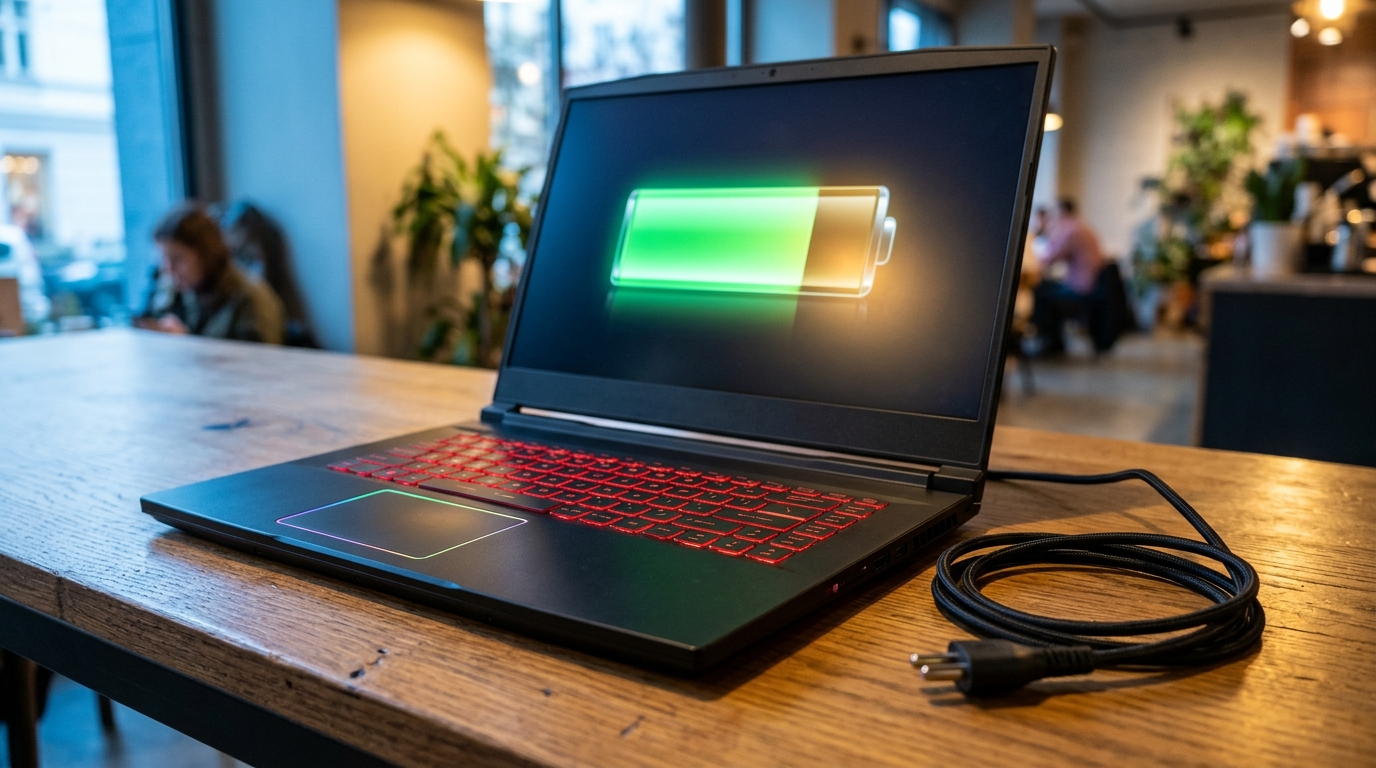
Battery life on a gaming laptop ranges from a comfortable day of browsing to barely a couple of hours of gaming, and the gap between those two numbers is where most buyers get burned.
Browsing is the flattering test. The Gigabyte Gaming A16 lasted 7 hours 42 minutes on Wi-Fi web browsing with its display dimmed to 150 cd/m². That’s enough to survive a lecture, a train ride and a long evening of streaming without hunting for a wall socket. Nice work. Now try loading a demanding game on it.
Gaming is where the battery gets a reality check. A GPU pulling full power, a CPU keeping up and fans spinning hard can drain a battery far faster than a browser tab ever will. PC Gamer ran the laptops through PCMark 10’s battery gaming test, and the results were not kind to anyone’s afternoon plans. The Acer Nitro V 16 AI lasted 140 minutes, the Aero X16 managed 109 minutes, and the LOQ 15 gave up at 89 minutes. Those gaps are measured in tens of minutes, and they show how quickly a gaming load eats a charge.
Laptop Mag takes a blunter approach. Its gaming battery test is a PCMark 10 battery test that loops a 3DMark test in a window until the laptop runs out of power. No menus, no breaks, no pretending you’ll alt-tab to check your email. It’s a worst-case workload on repeat, which is exactly the point. If a battery survives a loop like that, you know it has some stamina. If it doesn’t, you know the charger stays close.
The MSI Katana 17 HX ran for 6 hours 21 minutes in a battery comparison that also included the Framework Laptop 16. That’s a respectable number, but a long run time only means something when you know what the laptop was doing while it ran. Light work and heavy gaming can produce numbers that look like they came from two different machines, because in a way, they did.
So how should you plan your unplugged time? Treat the web-browsing number as the best case, the sunniest day the battery will ever see. Assume unplugged gaming is a short session, the kind you squeeze in on a couch before the charger has to come out. Keep the power adapter in your bag, and if a game refuses to run well without it, that’s useful information, not a minor inconvenience.
Before you trust any battery chart, check what the test actually asked the laptop to do. A browsing loop, a benchmark loop and a real game session each answer a different question, and a review that mixes them up is selling you a flattering graph.
Which Gaming Laptop Gives You the Most for Your Money?
The short answer is that in the RTX 5070 range, extra money usually buys a better machine rather than more frames. Price differences show up in build, cooling and battery life, and those can matter more day to day than a few extra frames.
The MSI Katana 17 HX is the budget entry point at $1,300, with an RTX 5070, 16 GB of RAM and a 1 TB SSD. You get the same GPU as machines costing hundreds more. The compromises are the ones we’ve already covered: a hot spot near the mute button that hit 115 °F under stress, and fans that make themselves heard.
The Gigabyte Gaming A16 with an RTX 5070 sits around $1,500, so the step up is modest. In the Notebookcheck review, it lasted 7 hours 42 minutes on Wi-Fi web browsing with the display dimmed to 150 cd/m², which is a strong number for a gaming laptop. The price of that extra longevity is fan noise of 54–55 dB(A) under load in Game Mode, so you’re paying for stamina and a quieter lap, not a different GPU.
At the premium end, the Framework Laptop 16 review unit with an RTX 5070 cost $2,396. The Razer Blade 14 (2025) starts at $2,299.99, but that price comes with an RTX 5060. The RTX 5070 version with 32 GB of RAM costs $2,699.99, which means part of that gap is memory, not graphics. Premium pricing buys a thinner, fancier chassis, and that’s a fair thing to pay for if portability is your priority.
Here’s the trap to avoid. A higher price does not automatically mean higher frame rates. Two laptops with the same GPU can deliver similar frames, and the difference you feel is in the build, the cooling system and how long the battery holds up. If a premium machine costs $1,000 more and runs your game at the same frame rate, you’re buying a nicer case, not a stronger engine.
So compare like with like before you decide. Line up the GPU, the RAM and the storage first, then check the price. Our list looks like this:
- MSI Katana 17 HX: about $1,300, RTX 5070, 16 GB RAM
- Gigabyte Gaming A16: about $1,500, RTX 5070
- Framework Laptop 16: $2,396 review unit, RTX 5070
- Razer Blade 14 (2025): $2,699.99, RTX 5070, 32 GB RAM
Notice that RAM doesn’t match across the list. The Razer’s extra 16 GB explains some of its price, and a Katana with the same memory would be a fairer comparison. Check the test conditions for each review too, because a frame rate measured on a cool desk, plugged in, is not the same number you’ll see on your lap in a backpack.
Which Test Results Should You Trust in a Gaming Laptop Review?

A trustworthy gaming laptop review shows its test conditions, repeats its runs, names its benchmarks and states the exact configuration. If a review skips any of those, treat its chart as decoration.
Repeat runs are the cheapest way to catch a fluke. A laptop can post one lucky score on a cool, freshly booted machine and look like a champion until its fans spin up. RTINGS runs its laptop benchmarks three times and reports the average, which is the habit you want to see. One pass tells you what happened once. Three passes and an average tell you what the machine usually does.
Benchmarks also answer different questions, so check which ones were used. Gaming laptop tests commonly lean on 3DMark Fire Strike Ultra and Time Spy Extreme, and add Port Royal when the graphics card supports ray tracing. Synthetic scores are handy for comparing two machines on the same script, but they don’t promise that your favorite shooter will feel smooth. Real games at named settings still matter more.
Configuration is the part reviewers love to blur. A GPU name alone guarantees nothing, because cooling and power limits decide how much of that chip the laptop can actually use for long. A review that says “RTX 5070 laptop” without naming the RAM, the storage and the price is describing a category, not a product. Our own reviews should meet the same bar.
Before you trust any review, run it through this checklist:
- Find the test conditions, and confirm whether the laptop was plugged in and how warm the room was.
- Check whether the results are averages from repeat runs or a single pass.
- Look for the games and benchmarks tested, along with the presets and resolution.
- Confirm the exact GPU, RAM, storage and price of the tested configuration.
- Make sure frame rates include 1% lows, not just averages.
- Find the noise figure in dB(A) and the performance mode it was measured in.
- Check what the battery test looped: web browsing, a benchmark or a real game.
Red flags are easy to spot once you know the list. A review with one score, no settings, no battery context and no noise numbers is missing nearly everything that makes a number useful. Hiding the decibels is a particularly bold move, because a fan that sounds like a jet engine is the first thing you’ll notice at 2 a.m.
Picking the Gaming Laptop You Can Actually Live With
Start with the question no spec sheet will ask you: where are you actually going to play? A desk, a couch and an airplane tray table put very different demands on a machine, so decide your priorities before you look at any model.
If you play at a desk, heat and noise matter less. The laptop sits on a table with air moving underneath it, and you can tolerate a louder fan if the frame rate holds. Put your weight on sustained performance and a cooling system that doesn’t give up halfway through a match.
On a couch or in bed, the underside becomes personal. Your thighs are now the heat sink, so a hot base can ruin a great frame rate. Battery and charger reach matter here too, because a power cable stretched across the living room is an accident waiting to happen.
On a plane, battery life and quiet beat everything else. Assume you’ll be unplugged and playing something lighter than your usual game, and treat the browsing and gaming battery numbers as two separate promises.
Next, check the 1% lows for the games you actually play. Find your title in the review, then check its preset and resolution. If your favorite shooter isn’t in the chart, the review is asking you to trust it on faith, and faith doesn’t render frames.
Set a budget, then compare only the same RTX tier. Lining up an RTX 5070 against an RTX 5060 is how a listing wins an argument it shouldn’t. Match the RAM and storage before you compare prices. If a pricier machine delivers the same frames, you’re paying for the chassis, which is fine if you carry it every day and wasteful if it lives on your desk.
So here’s the stance. A laptop that stays quiet and holds its frame rates in your games beats any spec sheet headline. A big GPU name means nothing if the fans sound like a leaf blower and the frames dip every time something explodes.
Before you buy, read the full test data: the conditions, the repeat runs, the 1% lows, the decibel figures and the battery loop. If a reviewer won’t show you those, close the tab and find one who will.
Turning the Numbers Into a Shortlist
Your next step is simple. Open a notes app and write down three things: the game you play most, the settings you’d realistically use (Medium or Low, not the ones in the marketing slides), and where you’ll actually sit while playing. A desk, a couch and a bed with a bag of chips next to you are three very different situations.
Then shop with that list in hand. Find reviews that test your game at those settings. If a review never mentions your game, don’t argue with it. Close the tab and find one that does.
Once you have a shortlist, check three numbers that decide whether you’ll still like the machine in a month. Look for the 1% low for your game, the decibel figure under load in its loudest mode, and the surface temperature of the spots your hands and legs will touch. If you only play at a desk, you can forgive some noise. If you play in bed, the temperature figure matters most.
Compare prices last, and only after you’ve matched the GPU, RAM and storage. A $1,300 machine that hits your frame target is a better buy than a $2,700 one you’re paying extra to carry around. Keep a few notes on each model, and when the spec sheet starts talking about “gaming performance,” ask it which game, which settings and which room.